What Subtitle Edit is and when to use it
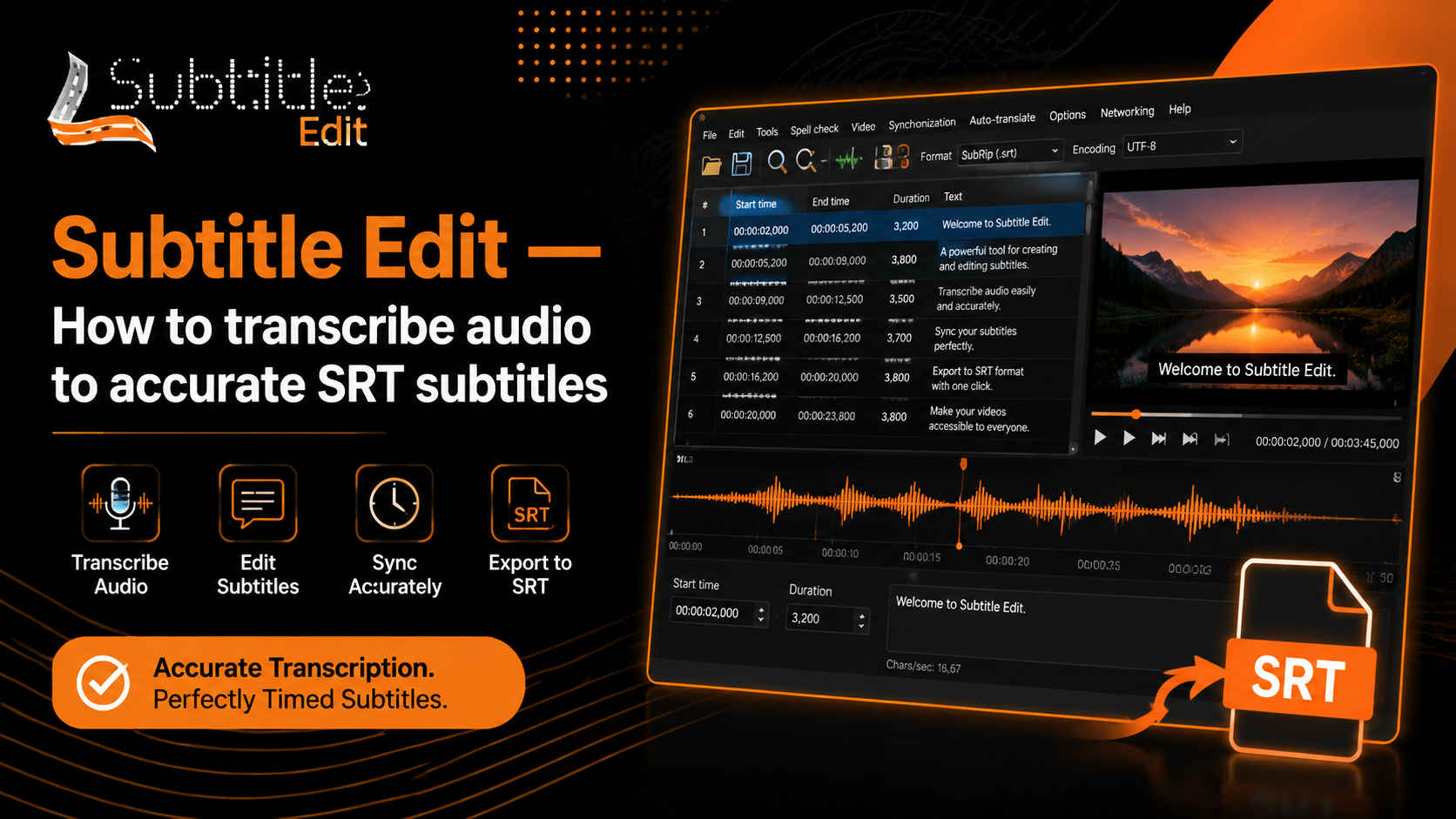
Subtitle Edit is a free subtitle creation and editing application designed to help users create, synchronize, translate, and improve subtitles for video content. It supports many subtitle formats, including SRT subtitles, which is one of the most commonly used formats for online videos, streaming platforms, and media projects.
The software combines manual editing tools with automatic features such as audio waveform visualization, subtitle synchronization, spell-checking, and speech-recognition support. These features make it useful for beginners, professional translators, content creators, and video editors who need accurate subtitle files.
Subtitle Edit is commonly used when creating subtitles from recorded audio, interviews, educational videos, movies, podcasts, and online content. Users can either type subtitles manually while listening to the audio or use speech recognition tools to generate a first draft for review and correction.
The application is especially helpful when accuracy and timing are important. It allows users to adjust subtitle timing, fix transcription errors, improve readability, and export the final subtitles in SRT format for use with different video players and platforms.
Key features for automatic transcription and subtitle editing
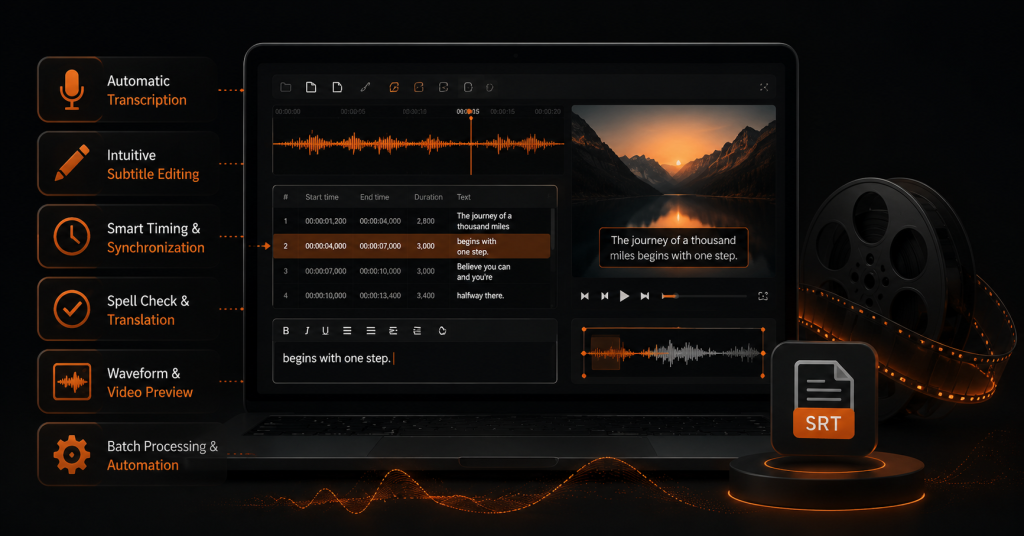
Subtitle Edit provides several tools that help users create accurate subtitles faster and improve existing subtitle files. Its automatic transcription features can convert spoken audio into text, allowing users to generate subtitle drafts without manually typing every line. The software includes waveform and spectrogram views that help users match subtitle timing with spoken words. These visual tools make it easier to identify when dialogue starts and ends, resulting in better synchronization.
Other important features include subtitle translation, spell checking, automatic timing adjustments, and tools for correcting common subtitle errors. Users can also compare subtitles with the original audio to improve accuracy before exporting the final file.
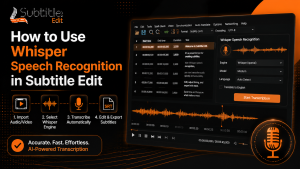
For automatic transcription workflows, Subtitle Edit can connect with speech recognition technologies to process audio and create text-based subtitles. These generated subtitles usually require manual review, but they significantly reduce the time required to create SRT files.
Supported audio, video and subtitle formats
Subtitle Edit supports a wide range of media and subtitle formats, making it suitable for different video editing and localization projects. Users can open videos, process audio tracks, and create subtitle files without needing separate conversion tools.
The application works with common video formats such as MP4, MKV, AVI, and other formats supported by installed media components. It can extract and analyze audio from video files for transcription and subtitle timing tasks.
For subtitle files, Subtitle Edit supports popular formats including SRT, ASS, SSA, SUB, VTT, and many others. This allows users to edit existing subtitles or convert files between different subtitle standards.
The wide format support makes Subtitle Edit a practical choice for users who work with different media sources, online videos, translated content, and professional subtitle projects.
Installing and initial setup
Subtitle Edit is designed to run on standard desktop systems and does not require high-end hardware for basic subtitle editing tasks. Before installation, users should check that their system meets the required specifications and prepare the necessary files for working with subtitles.
The installation process is simple and usually involves downloading the official installer, selecting the installation location, and completing the setup wizard. After installation, users can open Subtitle Edit and configure basic preferences such as language, subtitle format settings, and video playback options.
A proper initial setup helps users create a smoother subtitle workflow. Adjusting settings for audio playback, automatic transcription tools, and subtitle display preferences can improve accuracy and make future editing tasks easier.
System requirements and installation steps
Subtitle Edit can run on most modern Windows systems with basic hardware specifications. The software is lightweight, so users generally do not need advanced computer components for regular subtitle creation and editing.
Before installing Subtitle Edit, users should ensure that their system has enough storage space and the required media components for smooth video playback. A stable audio setup is also recommended when working with transcription and synchronization features.
The general installation process includes downloading the setup file, opening the installer, accepting the license agreement, choosing installation preferences, and completing the installation wizard. After installation, users can launch the application and begin configuring their subtitle editing environment.
The first setup may include selecting the interface language, checking video player settings, enabling required transcription features, and adjusting subtitle display options. These settings help create a more efficient workflow for producing accurate SRT subtitle files.
First-time configuration: language, audio backend and spellcheck
After installing Subtitle Edit, users should configure the basic settings to create a comfortable subtitle editing environment. The first configuration helps improve workflow speed, accuracy, and compatibility with different media files.
The interface language can be changed according to user preference from the settings menu. Choosing the correct language makes navigation easier and helps users understand editing tools and subtitle options more efficiently.
Audio backend settings control how Subtitle Edit handles video and audio playback. Selecting a suitable audio system ensures smooth previewing, accurate timing adjustments, and better synchronization while creating subtitles.
The spellcheck feature is useful for identifying typing mistakes and improving subtitle quality. Users can enable the required language dictionary so Subtitle Edit can detect spelling errors during subtitle creation and editing.
Proper configuration of these settings creates a reliable foundation for working with automatic transcription, subtitle correction, and SRT file preparation.
Preparing audio and video for best results
Preparing media files correctly before starting transcription or subtitle editing can improve the accuracy of generated subtitles. High-quality audio and properly formatted videos help Subtitle Edit recognize speech more effectively.
Clear audio recordings with minimal background noise usually produce better transcription results. When possible, users should use files with understandable speech, balanced volume levels, and fewer interruptions.
Video preparation is also important because Subtitle Edit uses the audio track to generate and synchronize subtitles. Users should ensure that the selected video contains the correct audio source and does not have unnecessary audio delays.
Before beginning the subtitle process, it is recommended to check the video resolution, audio quality, and playback compatibility. Proper preparation reduces editing time and helps create more accurate SRT subtitle files.
Recommended file formats, sample rates and codecs
Choosing suitable audio and video formats helps Subtitle Edit process files more efficiently and improves transcription accuracy. Common video formats such as MP4 and MKV are widely used because they provide good compatibility and maintain audio quality.
For audio files, formats like WAV are often preferred for transcription tasks because they provide high-quality, uncompressed audio. MP3 files can also be used, but lower-quality recordings may affect speech recognition results.
A clear sample rate is important when preparing audio for automatic transcription. Standard audio settings such as 44.1 kHz or 48 kHz usually provide enough quality for subtitle creation and voice recognition.
Using supported codecs ensures that Subtitle Edit can correctly read and process media files. Reliable formats with stable audio streams help prevent playback issues, synchronization errors, and incomplete subtitle generation.
Cleaning audio: noise reduction, normalization and splitting long recordings
Cleaning audio before transcription can significantly improve the quality of generated subtitles. Background noise, unclear speech, and uneven volume levels can reduce speech recognition accuracy and increase correction workload.
Noise reduction tools can help remove unwanted sounds such as background hum, traffic noise, or recording interference. Cleaner audio allows transcription systems to identify spoken words more accurately.
Audio normalization helps maintain consistent volume throughout a recording. It prevents sections from being too quiet or too loud, making both automatic transcription and manual subtitle editing easier.
For long recordings, splitting the audio into smaller sections can improve processing speed and organization. Dividing large files into shorter parts also makes it easier to review subtitles, fix errors, and maintain accurate timing.
Preparing clean and well-organized audio creates a better workflow for generating accurate SRT subtitles with Subtitle Edit.
Step-by-step: running automatic transcription and common settings
Subtitle Edit allows users to automatically create subtitle drafts using speech recognition tools. The transcription process converts spoken audio into text, which can then be reviewed and adjusted for accuracy.
To start automatic transcription, users first open a video or audio file in Subtitle Edit and select the speech recognition option. The required language, recognition engine, and audio settings can then be selected based on the recording.
During transcription, users can adjust settings such as language detection, recognition accuracy, and subtitle timing preferences. These settings help improve the quality of generated subtitles and reduce the amount of manual correction needed.
After transcription is complete, the generated subtitles should be checked for spelling mistakes, incorrect words, and timing issues. Carefully reviewing the draft ensures that the final SRT file matches the original audio content.
Using the correct transcription settings and reviewing the output step by step helps users create more accurate subtitles with less editing effort.
Managing long files: batching, checkpoints and retry strategies
Working with long audio or video files requires proper management to avoid processing issues and improve efficiency. Large recordings may take more time to analyze, especially when using automatic transcription features.
Splitting long recordings into smaller sections can make the transcription process faster and easier to manage. Users can process each section separately and combine the completed subtitle parts after reviewing them.
Creating checkpoints during the editing process helps prevent data loss. Saving subtitle drafts regularly allows users to continue work from the last completed stage if an error occurs.
If transcription fails or produces inaccurate results, users can retry specific sections instead of processing the entire file again. Adjusting audio quality, recognition settings, or file sections can improve the final output.
A structured approach with batching, regular saving, and targeted retries makes handling long recordings more reliable and reduces subtitle production time.
Precise timing: waveform, audio cues and subtitle overlap fixes
Accurate subtitle timing is an important part of creating professional SRT files. Subtitle Edit provides waveform and audio visualization tools that help users match subtitle lines with the exact moments when dialogue starts and ends.
The waveform view displays the audio waveform, allowing users to identify speech segments and adjust subtitle timing more precisely. This makes it easier to avoid subtitles appearing too early or too late.
Audio cues can also help users locate pauses, sentence changes, and important dialogue points. By comparing subtitle timing with the original audio, users can create smoother reading experiences for viewers.
Subtitle overlap issues can occur when one subtitle appears before the previous subtitle has finished. Subtitle Edit includes tools for detecting and fixing overlapping subtitles by adjusting start and end times.
Using waveform analysis, audio cues, and automatic timing correction features helps users maintain accurate synchronization between video and subtitles.
Keyboard shortcuts and workflow tips to speed editing
Subtitle Edit includes keyboard shortcuts and workflow features that help users complete subtitle tasks more efficiently. Learning common shortcuts reduces the need to repeatedly use menus and improves editing speed.
Users can quickly perform actions such as playing or pausing audio, moving between subtitle lines, adjusting timing, and saving changes. These shortcuts are especially useful when working on longer videos with many subtitle entries.
A structured workflow also improves productivity. Users can first create a subtitle draft, review timing, correct text errors, and then perform a final quality check before exporting the file.
Using features such as automatic spellcheck, find-and-replace tools, subtitle synchronization options, and shortcut controls can reduce manual work.
Combining keyboard shortcuts with an organized editing process allows users to create accurate subtitles faster while maintaining better consistency.
Exporting and using SRT files
After completing subtitle creation and editing, Subtitle Edit allows users to export their work into different subtitle formats, including the widely used SRT format. Exporting correctly ensures that subtitles maintain proper timing, text formatting, and compatibility with different video players and platforms.
SRT files are commonly used for online videos, media players, educational content, and streaming projects because they are simple text-based files that store subtitle timing and dialogue information.
Before exporting, users should review the subtitles for spelling errors, synchronization problems, and formatting issues. A final quality check helps ensure that the exported file provides a smooth viewing experience.
Subtitle Edit also provides options to adjust file settings, choose encoding types, and convert subtitles to other supported formats when required.
Export options, encoding and preserving timing
Subtitle Edit supports multiple export options, allowing users to save subtitles to meet their project requirements. When exporting an SRT file, users can select the required format and review subtitle settings before creating the final file.
Encoding settings are important because they determine how characters and special languages are stored in the subtitle file. Using a suitable encoding option helps prevent missing characters, incorrect symbols, or display problems when opening subtitles on different platforms.
Preserving accurate timing is essential when exporting subtitles. Users should confirm that start times, end times, and subtitle durations remain unchanged after export.
Subtitle Edit includes tools for adjusting timing, checking subtitle errors, and maintaining synchronization during format conversion. These features help ensure that exported SRT files work correctly with videos and media players.
By selecting the right export settings and verifying timing accuracy, users can create reliable subtitle files ready for sharing or publishing.
Preparing subtitles for common platforms and players
Subtitle Edit helps users prepare subtitle files compatible with various platforms, video players, and publishing systems. Since each platform may have different subtitle requirements, users should check file format, timing, and character support before uploading.
For common video players, SRT files are usually the preferred choice because they are simple, lightweight, and widely supported. Users should ensure that subtitle file names match the related video file name when using local media players.
Online platforms may have specific requirements for subtitle formatting, language selection, and timing accuracy. Reviewing subtitles before uploading helps prevent issues such as incorrect text display, missing characters, or synchronization problems.
Subtitle Edit can also help convert subtitles into different formats when a platform requires a specific file type. Checking the exported subtitle file on the target platform ensures that viewers receive a smooth and accurate subtitle experience.
Privacy, data handling and research use
Privacy and data handling are important considerations when using transcription and subtitle tools. Subtitle Edit is primarily a desktop-based editing application that allows users to process subtitle files locally on their systems.
When using automatic transcription features, users should understand how the selected speech recognition service processes audio data. Some services may require sending audio files to external systems for analysis, while local processing options keep data on the user’s device.
Users working with confidential recordings, interviews, or private media should review the privacy policies of any external transcription services they use. Protecting sensitive audio files helps reduce the risk of unwanted data exposure.
Researchers and developers may use Subtitle Edit for studies related to speech recognition, language processing, accessibility, and subtitle generation workflows. The software can support experiments involving transcription accuracy, timing analysis, and multilingual subtitle development.
Responsible data management practices ensure that Subtitle Edit can be used effectively while maintaining user privacy and protecting sensitive content.
Local vs cloud recognition: data exposure and compliance
Subtitle Edit workflows can involve both local and cloud-based speech recognition methods. The choice between these options depends on accuracy needs, processing speed, and privacy requirements.
Local recognition processes audio directly on the user’s device. This approach helps reduce data exposure because recordings do not need to be uploaded to external services. It is often preferred for private interviews, confidential projects, and sensitive recordings.
Cloud recognition services may provide faster processing and advanced speech recognition capabilities. However, users should understand how their audio data is handled, stored, and processed by third-party providers.
For organizations and research projects, selecting a recognition method that meets compliance requirements is important. Reviewing privacy policies and data protection practices helps ensure responsible use of transcription tools.
Best practices for handling personal or sensitive recordings
When working with personal or sensitive recordings, users should take steps to protect their files throughout the subtitle creation process. Secure storage and controlled access help prevent unauthorized use of private information.
Users should avoid uploading confidential recordings to external services unless they understand the service’s data handling policies. Keeping backups in secure locations also helps prevent accidental data loss.
Removing unnecessary personal information from recordings before processing can improve privacy. It is also recommended to delete temporary files after completing transcription tasks.
Following proper security practices allows users to create subtitles while maintaining confidentiality and protecting sensitive audio content.
Using Subtitle Edit workflows in academic or research projects
Subtitle Edit can support academic and research projects that involve transcription, language analysis, accessibility studies, and multimedia content processing.
Researchers can use the software to create accurate subtitle datasets, analyze spoken content, and prepare audio or video materials for study. Features such as timing adjustment, transcription support, and format conversion can simplify research workflows.
For educational projects, Subtitle Edit can help prepare lecture recordings, interviews, and learning materials with accessible subtitles.
A structured workflow with proper file organization, quality checks, and documentation helps researchers maintain consistent results throughout their projects.
Quality improvement and troubleshooting
Creating accurate subtitles often requires reviewing, correcting, and improving the initial transcription output. Subtitle Edit provides several tools that help users identify errors and improve subtitle quality.
Common problems may include incorrect words, timing mismatches, unsupported characters, or playback issues. Understanding these problems and applying the right solutions can improve the final subtitle output.
Tips to improve recognition accuracy (custom dictionaries, language settings)
Improving transcription accuracy starts with selecting the correct language and recognition settings. Choosing the language that matches the audio content helps speech recognition tools identify words more effectively.
Custom dictionaries can improve results when recordings contain technical terms, names, industry-specific vocabulary, or uncommon words. Adding frequently used terms helps reduce repeated transcription mistakes.
Clear audio quality, proper microphone recordings, and reduced background noise also contribute to better recognition results.
Regularly reviewing generated subtitles and correcting mistakes helps improve accuracy over time and creates more reliable SRT files.
Common issues and how to resolve them
Users may experience issues such as incorrect transcription, missing subtitles, audio playback problems, or synchronization errors. These problems can usually be fixed by checking settings and reviewing the source media.
If transcription accuracy is poor, users should verify audio quality, language selection, and recognition settings. Improving recording quality or adjusting transcription options may yield better results.
Timing problems can often be resolved by adjusting subtitle start and end points using waveform tools. Format-related issues may require converting subtitles into a more compatible file type.
Regular updates, proper configuration, and careful review can prevent many common subtitle editing problems.
Performance tips for large projects
Large subtitle projects require efficient organization to maintain performance and accuracy. Dividing large recordings into smaller sections can make processing and editing easier.
Users should organize subtitle files, audio sources, and project backups in separate folders. This approach helps manage multiple versions and reduces the chance of losing important work.
Regularly saving progress and removing unnecessary temporary files can improve workflow reliability. Using efficient editing methods also reduces processing time when handling long videos.
Optimizing the workflow helps Subtitle Edit remain responsive during complex projects with many subtitle entries.
Additional resources and support
Subtitle Edit users can access different resources to improve their skills, solve technical issues, and stay updated with new features.
Documentation, community discussions, and user-created guides can help beginners understand advanced tools and improve subtitle workflows.
Plugins, community scripts and official updates (Web)
Subtitle Edit supports additional tools and community resources that can extend its functionality. Plugins, scripts, and related utilities may provide additional features for specific subtitle-editing tasks.
Community-created scripts can help automate repetitive actions and improve productivity for advanced users. These tools should be reviewed carefully to ensure compatibility and security.
Keeping Subtitle Edit updated helps users access improvements, bug fixes, and new features released by developers.
Where to get help: forums, tutorials and reporting bugs
Users can find help through community forums, tutorials, and technical discussions related to Subtitle Edit. These resources provide guidance for installation problems, workflow questions, and advanced editing techniques.
Tutorials can help users learn features such as transcription, synchronization, and subtitle conversion. Community discussions are also useful for finding solutions to uncommon issues.
When reporting bugs, users should provide detailed information about the problem, system environment, and steps needed to reproduce the issue. Clear reports help developers identify and fix problems more effectively.
FAQS
Is Subtitle Edit free to use?
Yes, Subtitle Edit is a free subtitle editing application that allows users to create, edit, synchronize, and convert subtitle files. It offers a range of features for both beginners and advanced users without requiring a paid license.
Can Subtitle Edit automatically create SRT subtitles?
Subtitle Edit can generate subtitle drafts using speech recognition tools. The automatic transcription feature converts spoken audio into text, but users should review and correct the output for better accuracy.
Does Subtitle Edit support audio and video transcription?
Yes, Subtitle Edit can work with video and audio files to create subtitles. It uses the available audio track for transcription and provides tools for timing adjustment, editing, and subtitle synchronization.
How can I improve transcription accuracy in Subtitle Edit?
Users can improve accuracy by using clear audio recordings, selecting the correct language settings, reducing background noise, and adding custom dictionary terms for specific names or technical words.
Conclusion
Subtitle Edit is a useful tool for creating accurate SRT subtitles using manual editing and automatic transcription. Its timing tools, format support, and workflow options make it suitable for content creators, researchers, translators, and video editors.
By preparing high-quality audio, configuring the software correctly, and carefully reviewing the generated subtitles, users can create professional subtitle files with greater accuracy and synchronization.
Latest Post:
- Is Subtitle Edit Safe? Download, Malware, and Security Checklist
- Subtitle Edit Online: Best Web Options for Editing Subtitles
- Is Subtitle Edit Open Source? Features, License, and Download Options
- How to Use Whisper Speech Recognition in Subtitle Edit
- Subtitle Edit for Mac: Setup Options and Best Alternatives