Quick takeaways and who should read this
Choosing the right subtitle editor for Mac depends on your editing needs, workflow, and level of experience. Some users need simple subtitle corrections, while others require advanced tools for transcription, translation, and professional video projects.
This guide helps Mac users understand important subtitle editing features, compare different tool options, and choose software that fits their requirements.
It is useful for video creators, translators, content editors, students, and professionals who work with subtitles on macOS.
Top picks by use case
Different subtitle editors are designed for different workflows. Some tools focus on manual timing and precise editing, while others provide automation, transcription, and advanced content creation features.
Choosing the right option depends on whether you need full control over subtitles, faster AI-assisted workflows, or a balance between simplicity and advanced features.
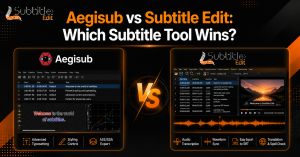
Best free/manual editor — Aegisub
Aegisub is a popular choice for users who want detailed manual control over subtitle creation. It provides precise timing tools, styling options, and advanced subtitle formatting features.
It is especially useful for users working on animation, translation projects, and content where accurate subtitle placement and customization are important.
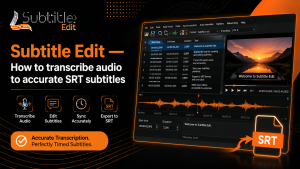
Best full-featured free/native option — Subtitle Edit (Mac)
Subtitle Edit is known for its wide range of subtitle editing features, including synchronization tools, format conversion, and speech recognition support. Mac users can access its functionality through compatible setups or supported environments.
It is suitable for users who need a complete subtitle workflow with tools for editing, translating, and improving subtitle accuracy.
Best AI-driven transcript-based editor — Descript
Descript focuses on AI-powered editing by converting spoken content into editable text. Users can create and modify subtitles using a transcript-based editing interface.
It is useful for creators who want faster caption generation, automated transcription, and a simple workflow for video and audio content.
Best for short-form/social captions — CapCut
CapCut is a suitable option for users who create short videos for social media platforms. It provides quick caption generation, simple subtitle editing, and easy styling options for vertical content.
Its automated features help creators add captions faster while adjusting text appearance for platforms like short videos, reels, and promotional content.
Best Mac-native transcription GUI — MacWhisper
MacWhisper provides a simple interface for generating transcripts using Whisper-based speech recognition. It is designed for Mac users who want fast local transcription without complex setup.
It is useful for creating transcripts, captions, and text from audio files while keeping the workflow simple and focused.
Best cloud collaborative editor — Kapwing
Kapwing is a browser-based subtitle editor designed for collaboration and online content creation. It allows multiple users to work on video projects, edit captions, and manage content from different devices.
It is helpful for teams and creators who need shared editing features, cloud storage, and quick subtitle workflows.
Best for professional transcription exports — Happy Scribe / similar services
Professional transcription services like Happy Scribe focus on converting audio and video into accurate text and subtitle files. They provide export options for different formats used in professional workflows.
These services are useful for businesses, media teams, and creators who need reliable transcripts with minimal manual editing.
Best community and localization workflows — Amara
Amara is designed for subtitle collaboration, translation, and localization projects. It allows communities and teams to create multilingual subtitles while managing review and editing workflows.
It is especially useful for educational content, international videos, and projects that require contributions from multiple translators.
Side-by-side comparison
Comparing subtitle editors helps users understand which tools match their workflow. Factors such as editing control, automation, collaboration, and export options can affect the final choice.
A clear comparison makes it easier to select software based on project size, technical requirements, and subtitle production goals.
Key comparison criteria explained (features to weigh)
When comparing subtitle editors, users should consider features that directly affect editing speed and quality. Important factors include timing accuracy, subtitle styling, transcription support, file compatibility, and workflow flexibility.
Advanced users may also look for automation tools, batch processing, collaboration features, and integration options that improve larger subtitle projects.
Supported file formats and codec compatibility at a glance
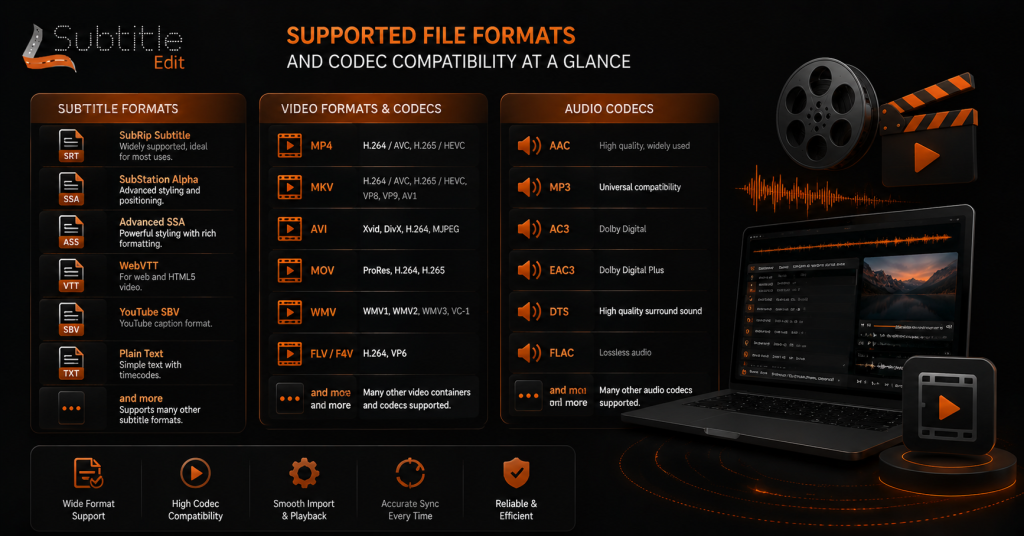
Subtitle editors should support common formats such as SRT, VTT, ASS, and other caption files used across different platforms. Format compatibility helps maintain subtitle timing and formatting when moving files between tools.
Support for different video containers and codecs also improves flexibility, allowing users to work with various media files without conversion issues.
How to choose the right subtitle editor for your project
The best subtitle editor depends on your content type, editing requirements, and preferred workflow. A simple creator may only need basic caption tools, while professional users may require advanced timing, automation, and export features.
Evaluating your project needs before choosing software helps avoid unnecessary complexity and ensures better results.
Required features checklist: timing, styling, batch, automation, APIs
A reliable subtitle editor should include essential features for efficient editing and management. Important capabilities include accurate timing controls, subtitle styling, batch processing, and automation support.
For advanced workflows, API access and integration options can help connect subtitle tools with other software systems. These features are valuable for teams handling large volumes of video content.
Performance & platform considerations: native app vs web vs cross-platform
Subtitle editors are available as native desktop apps, web-based tools, and cross-platform solutions. Native applications usually provide better offline performance and deeper system integration, while web tools offer easy access from different devices.
Cross-platform editors are useful for users who work across multiple operating systems. The best choice depends on workflow requirements, project size, and whether offline editing or collaboration is more important.
Accessibility and compliance needs (closed captions, SDH)
Accessibility-focused subtitle editing requires support for closed captions and SDH (Subtitles for the Deaf and Hard of Hearing). These features include speaker identification, sound descriptions, and clear formatting for different audiences.
Editors with accessibility tools help creators produce inclusive content that meets platform requirements and improves viewing experiences for people with different needs.
Importing and previewing subtitles with your video
Most subtitle editors allow users to import existing subtitle files and preview them alongside the video. This helps check synchronization, text placement, and overall subtitle appearance before final export.
Preview features make it easier to identify timing problems and ensure captions match the spoken content correctly.
Editing text, splitting/merging lines, and maintaining readability
Subtitle editing requires clear text formatting and proper line structure. Users can correct mistakes, split long sentences, or merge short lines to improve readability.
Maintaining suitable line length and timing helps viewers follow subtitles comfortably without missing important dialogue.
Embedding vs softsubs: export options and best practices
Embedded or burned-in subtitles become a permanent part of the video and are useful for social media content or platforms where captions must always appear.
Soft subtitles remain as separate files that viewers can enable or disable. They provide more flexibility for streaming platforms and multilingual content because multiple subtitle tracks can be added.
Practical workflows and templates
A structured subtitle workflow helps users complete projects faster and maintain consistent quality. Different content types require different approaches, from quick social media captions to large-scale video localization.
Using repeatable templates can improve organization and reduce errors during editing, review, and export stages.
Quick workflow: captioning a 60–90s social clip (mobile-first)
For short social media videos, the workflow usually starts with importing the clip, generating or adding captions, adjusting timing, and applying readable styling.
Mobile-first editing focuses on quick adjustments, clear text placement, and formats suitable for vertical platforms. A simple workflow helps creators publish captions faster.
Workflow: localizing a feature-length film (batch + QA)
Feature-length film localization requires a more detailed process involving translation, timing adjustments, quality checks, and multiple subtitle versions.
Batch processing helps manage large files efficiently, while quality assurance ensures subtitles remain accurate, properly timed, and consistent throughout the entire film.
Fixing sync drift and re-timing long videos
Subtitle sync issues can happen when audio and subtitle timing do not match throughout a video. Re-timing tools allow users to shift subtitle tracks, adjust timing ranges, and correct gradual drift.
For long videos, checking synchronization at different points helps identify whether the issue is a constant delay or a timing difference that increases over time.
Character encoding, language scripts, and subtitle corruption fixes
Character encoding problems can cause missing symbols, incorrect letters, or broken text in subtitle files. Choosing the correct encoding settings helps display different languages properly.
Supporting multiple language scripts and fixing corrupted subtitle files ensures subtitles remain readable across different players and platforms.
FAQs
Subtitle editing on Mac involves choosing tools that support accurate timing, formatting, transcription, and export options. These frequently asked questions help users understand how subtitle editors work on macOS and which features are important for different workflows.
Can I use Subtitle Edit on Mac?
Yes, Subtitle Edit can be used on Mac through compatible solutions or supported environments. Mac users can access its subtitle editing features for tasks such as synchronization, translation, transcription, and file conversion.
What is the best subtitle editor for Mac?
The best subtitle editor depends on your needs. Users who need manual control may prefer advanced timing tools, while creators looking for faster workflows may choose editors with automatic transcription and AI-powered features.
Are there free subtitle editors available for Mac?
Yes, several free subtitle editors are available for Mac users. These tools provide features such as subtitle creation, timing adjustments, format conversion, and basic editing without requiring paid subscriptions.
Which subtitle formats work on Mac subtitle editors?
Most subtitle editors for Mac support common formats such as SRT, VTT, ASS, and SSA. These formats are widely used across video players, streaming platforms, and editing software.
Can Mac subtitle editors create automatic captions?
Many modern subtitle editors support automatic caption generation using speech recognition technology. These tools convert audio into text and allow users to review, correct, and export accurate subtitles.
Should I use a Mac app or online subtitle editor?
A Mac app is useful for offline work, better performance, and advanced editing tasks. Online editors are convenient for quick projects and collaboration because they work directly in a browser.
Conclusion
Choosing the right subtitle editor for Mac depends on your project requirements, editing style, and preferred workflow. Users who need detailed control should focus on timing, formatting, and compatibility features.
Modern subtitle editors provide options for manual editing, automatic transcription, translation, and professional exports. Selecting a tool with the right balance of features and usability can make subtitle creation faster and more efficient.