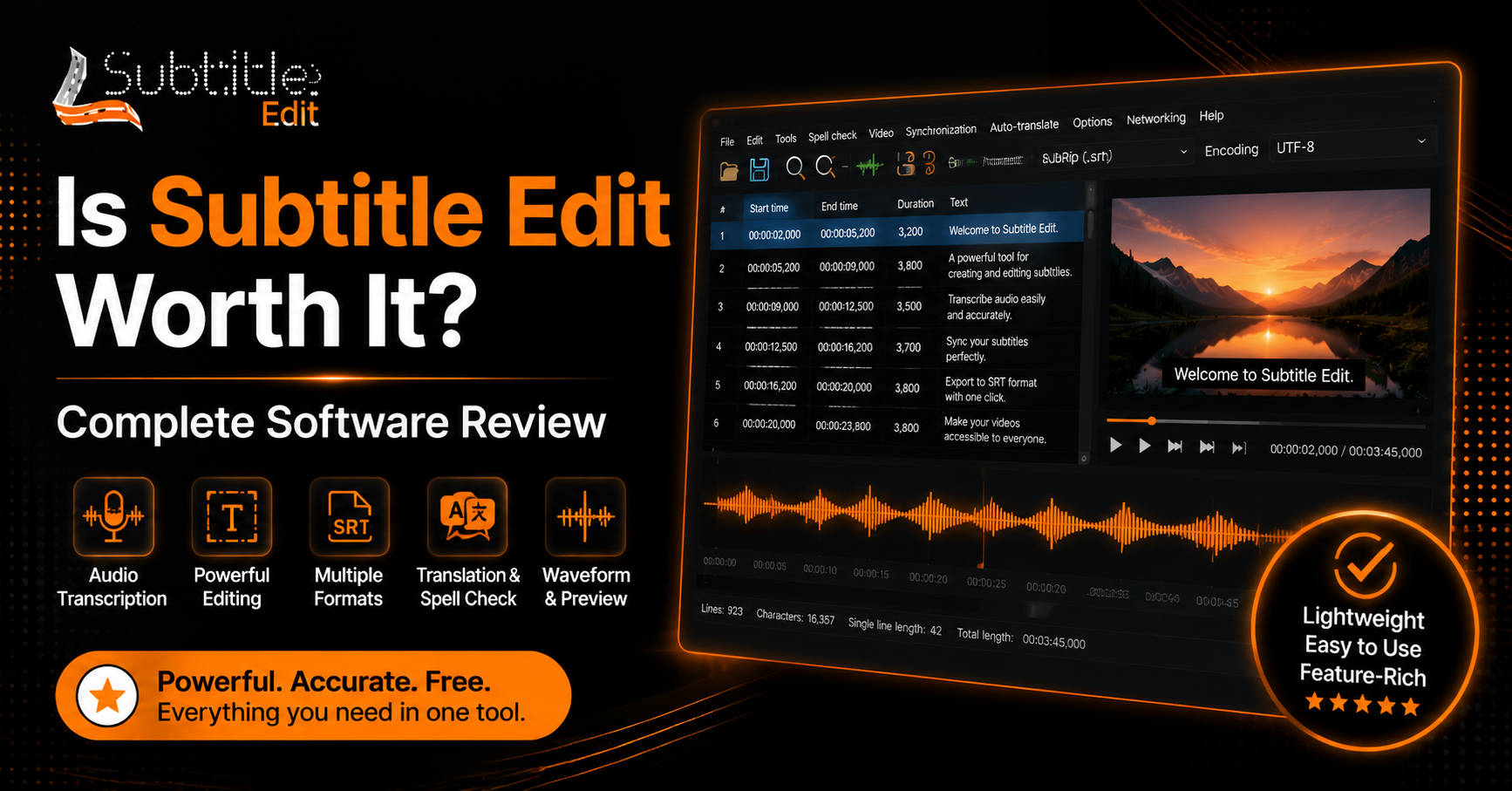
What Subtitle Edit is and who it’s for
Subtitle Edit is a free and open-source subtitle editing software designed to help users create, modify, synchronize, and translate subtitles for videos. It provides a complete set of tools for handling subtitle files, from simple text corrections to advanced timing adjustments and subtitle conversion.
The software supports many popular subtitle formats, including SRT, ASS, SUB, and VTT, making it useful for different types of video projects. Users can edit subtitle timing, fix synchronization problems, adjust text formatting, and preview changes while watching the video.
Subtitle Edit is mainly used by video editors, content creators, translators, and subtitle professionals who need better control over their captions. It is also suitable for beginners because its interface provides clear editing tools without requiring advanced technical knowledge.
The software is especially helpful for people working with movies, online videos, educational content, and multilingual projects. Whether you need to create subtitles from scratch, correct existing captions, or translate dialogue into another language, Subtitle Edit provides the necessary features in one application.
Unlike basic text editors, Subtitle Edit is built specifically for subtitle workflows. It includes tools such as automatic synchronization, waveform and spectrogram views, spell checking, and subtitle conversion options that make the editing process faster and more accurate.
Automatic synchronization and timing correction
Subtitle Edit includes tools that help users fix subtitle timing issues without manually adjusting every line. The automatic synchronization feature can compare subtitle timing with the audio or video and adjust subtitle positions to match the spoken dialogue more accurately.
The software provides waveform and spectrogram views that make it easier to identify when speech starts and ends. Users can visually match subtitle lines with audio signals, which is especially useful when subtitles appear too early or too late.
For longer videos, timing correction tools save significant editing time. Instead of changing each subtitle entry individually, users can apply timing adjustments across multiple lines while maintaining proper spacing and readability.
Subtitle Edit also supports features like changing subtitle speed, shifting timestamps, and adjusting delays. These options help fix common problems caused by different video versions, frame rate changes, or incorrectly synced subtitle files.
OCR from video frames and image-based subtitles
Subtitle Edit can extract text from image-based subtitles using Optical Character Recognition (OCR) technology. This feature is useful for videos where subtitles are stored as images instead of editable text, such as DVD subtitles or scanned subtitle files.
The OCR tool analyzes subtitle images and converts them into editable text. Users can review and correct the recognized text before saving it in a standard subtitle format, such as SRT or ASS.
This feature is helpful when working with older video content or subtitle files that cannot be directly edited. It reduces the need for manually typing every subtitle line and makes the conversion process much faster.
Subtitle Edit also allows users to improve OCR accuracy by adjusting recognition settings and correcting common character mistakes. This makes it easier to create clean, searchable, and properly formatted subtitles from image-based sources.
Format conversion and batch processing
Subtitle Edit supports conversion between subtitle formats, allowing users to work with files such as SRT, ASS, VTT, and SUB. Its batch processing tools help edit or convert multiple subtitle files simultaneously, saving time on large projects.
Spellcheck, translation helpers and machine-translation integration
Subtitle Edit includes spellcheck tools to find and correct subtitle text errors. It also provides translation features and machine-translation integration, helping users quickly create subtitles in different languages while keeping manual editing control.
Plugin and script support for extended functionality
Subtitle Edit supports plugins and scripting options that allow users to expand its features beyond the default tools. These options can automate repetitive tasks, add custom workflows, and improve subtitle editing efficiency.
Advanced users can create or use scripts for tasks like formatting changes, timing adjustments, and file processing. This makes the software more flexible for professional subtitle projects.
Supported subtitle formats and file compatibility
Subtitle Edit supports a wide range of subtitle formats, making it compatible with various video editing and media platforms. Users can open, edit, convert, and save subtitle files without needing separate conversion tools.
Commonly supported formats include SRT, ASS, SSA, VTT, SUB, and many other subtitle file types. This broad compatibility allows users to handle subtitles from movies, online videos, and professional video projects easily.
The software also supports working with various video formats via integrated playback options, allowing users to preview subtitles while making edits.
Common formats (SRT, ASS/SSA, SUB, VTT, etc.)
Subtitle Edit supports many popular subtitle formats used across different platforms and video projects. Common formats include SRT, ASS, SSA, SUB, and VTT, allowing users to edit and convert subtitles according to their needs.
SRT is widely used for its simple text-based structure, whereas ASS and SSA formats offer advanced styling options such as fonts, colors, and positioning. SUB formats are often found in older media files, and VTT is commonly used for web-based video platforms.
Handling different encodings and character sets
Subtitle Edit can handle different text encodings and character sets to ensure subtitles display correctly across languages. This helps prevent issues like missing symbols, incorrect letters, or unreadable text.
Users can change encoding settings when opening or saving subtitle files. Support for Unicode formats, including UTF-8, makes it easier to work with multilingual subtitles and special characters.
Subtitle Edit User interface and basic workflow
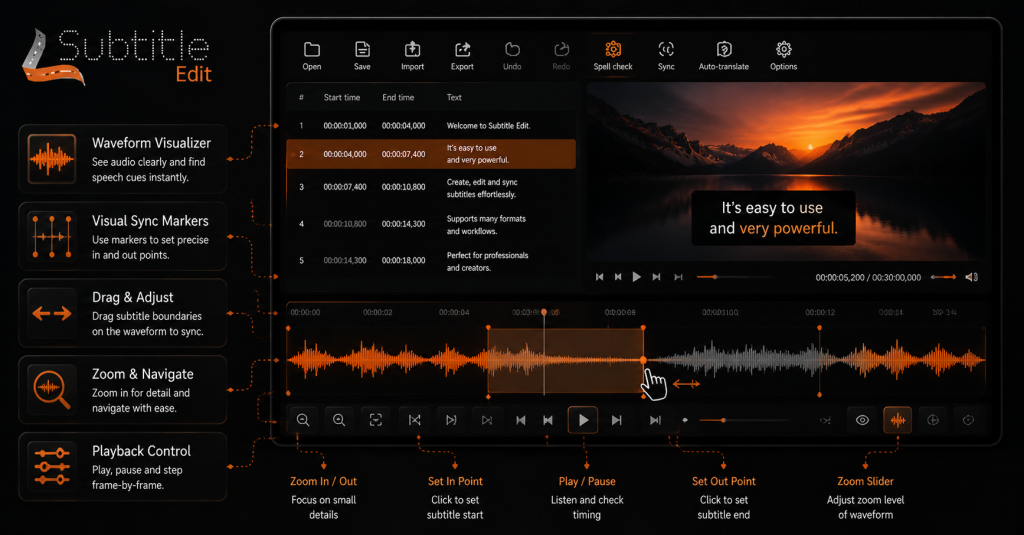
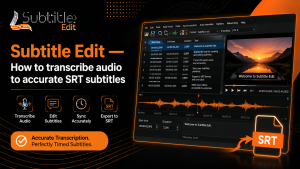
Subtitle Edit provides a simple workspace designed around the main subtitle editing tasks. The interface includes areas for video preview, subtitle text editing, timing controls, and additional tools to check and improve subtitle quality.
The basic workflow starts by loading a video file and adding an existing subtitle file or creating new subtitles from the beginning. Users can then edit text, adjust timing, and preview changes directly while watching the video.
Opening media and loading subtitles
To begin editing, users first open a video file inside Subtitle Edit. The built-in video player helps match subtitle lines with spoken dialogue and makes timing adjustments easier.
After loading the media, users can import an existing subtitle file or create a new subtitle track. The software automatically displays subtitle lines with their timestamps, allowing quick editing of text, timing, and formatting.
Subtitle Edit supports multiple subtitle formats, so users can work with files from different sources without needing extra conversion tools.
Adjusting timings and visual sync steps
Subtitle Edit allows users to adjust subtitle timing to accurately match spoken dialogue. Users can move subtitles forward or backward, change individual timestamps, or apply timing changes to multiple lines at once.
The waveform and video preview tools help identify the exact point where speech begins and ends. This makes it easier to fix subtitles that appear too early, too late, or stay on screen for the wrong duration.
Saving, exporting, and validating files
After completing edits, users can save subtitles in various formats to meet their project requirements. Subtitle Edit supports exporting files in SRT, ASS, VTT, and other common subtitle formats.
Before finalizing, users can use validation tools to check spelling errors, timing issues, and formatting problems. This helps ensure subtitles are accurate, readable, and ready for use with different video platforms.
Installing and running Subtitle Edit across platforms
Subtitle Edit is mainly designed for Windows users and provides a simple installation process for both beginners and advanced users. The software can be installed using standard setup files or used as a portable application without a full installation.
After installation, users can open Subtitle Edit and work with subtitle files and videos, using the editing tools. Keeping the software updated helps ensure better compatibility and access to new features.
Windows installers and portable builds
Subtitle Edit offers a traditional Windows installer that installs the required files and creates shortcuts for easier access. This option is suitable for users who want a regular application setup.
A portable build is also available for users who prefer running the software without installation. It can be stored on external drives and opened on different computers while keeping the setup simple.
Both versions offer the same core subtitle-editing features, allowing users to choose the option that best fits their workflow.
Running on macOS and Linux (Mono/compatibility notes)
Subtitle Edit is primarily developed for Windows, but macOS and Linux users can run it through compatibility solutions such as Mono or similar Windows application support tools. Performance and available features may vary depending on the system setup.
Users running Subtitle Edit on non-Windows platforms should check compatibility requirements and ensure required components are installed. Some advanced features may work differently compared to the native Windows version.
System requirements and recommended setup
Subtitle Edit does not require powerful hardware because it is a lightweight subtitle editing application. A modern operating system, sufficient storage space, and stable video playback support are usually enough for smooth performance.
For larger video projects, users should have a reliable processor, enough RAM, and updated media components. Keeping the software and supporting tools updated helps maintain better performance and compatibility.
Using advanced tools
Subtitle Edit includes advanced tools that help users handle complex subtitle-editing tasks more accurately. These features are useful for improving timing, fixing synchronization problems, and managing detailed subtitle adjustments.
Advanced editing options allow users to work more efficiently, especially when creating subtitles for longer videos or professional projects. These tools provide better control over timing, formatting, and subtitle quality.
Waveform editor and visual sync techniques
The waveform editor in Subtitle Edit helps users match subtitles with spoken audio more precisely. It displays the audio waveform, allowing users to see where dialogue starts and ends.
By comparing subtitle timestamps with the waveform, users can quickly identify timing errors and adjust subtitle positions. This visual approach is especially helpful for correcting out-of-sync subtitles.
The waveform and spectrogram views make subtitle synchronization easier by providing a clear connection between audio signals and subtitle timing. These tools reduce manual guessing and improve overall subtitle accuracy.
Plugins, automation and integrations
Subtitle Edit supports additional tools and customization options that help users extend its basic subtitle editing features. These options are useful for automating repeated tasks, improving workflow speed, and adding extra functionality.
With plugins, scripts, and external tools, users can customize the software to their specific subtitle-editing needs. This flexibility makes Subtitle Edit suitable for both casual users and advanced subtitle creators.
Common plugins and community extensions
Subtitle Edit has community-created plugins and extensions that add extra capabilities to the software. These tools can help with tasks such as subtitle processing, formatting improvements, and workflow automation.
Community extensions allow users to enhance their editing experience without changing the main application. They are especially useful for users who need specialized features beyond the default tools available in Subtitle Edit.
Command-line usage and scripting for automation
Subtitle Edit provides scripting and automation options that help users complete repetitive subtitle tasks faster. Command-line features can be useful for batch processing, file conversion, and applying similar changes to multiple subtitle files.
Scripts allow advanced users to customize workflows according to their needs. This can improve efficiency when working with large subtitle projects or frequent editing tasks.
Integrating with translation workflows and editors
Subtitle Edit can support translation-based workflows by helping users create, edit, and review subtitles in different languages. Its translation tools make it easier to manage multilingual content.
The software can also work alongside video editors and other production tools by providing compatible subtitle formats for different platforms.
Development, releases, and community involvement
Subtitle Edit continues to improve through regular updates, community feedback, and user contributions. Development focuses on improving editing tools, compatibility, and the overall efficiency of the subtitle workflow.
Release history and recent versions
New Subtitle Edit versions are released to introduce improvements, bug fixes, and support for newer technologies. Users can check official release information to stay updated about new features and changes.
Keeping the software updated helps users access the latest improvements and maintain better compatibility with current video and subtitle formats.
Source code, contribution guidelines, and issue reporting
Subtitle Edit is an open-source project that allows developers and users to contribute improvements. The source code is available for those who want to review, modify, or help improve the software.
Users can report bugs, suggest features, and share feedback through official community channels. These contributions help improve stability and add useful features over time.
Troubleshooting common issues
Subtitle Edit works reliably for most users, but some common problems can occur during subtitle editing, file conversion, or media playback. Understanding basic fixes can help solve these issues quickly.
Fixing sync drift and overlapping subtitles
Sync drift happens when subtitles gradually become misaligned with the audio throughout a video. Users can fix this by adjusting subtitle timing, changing delays, or using synchronization tools.
Overlapping subtitles can usually be corrected by checking subtitle duration and spacing. Proper timing adjustments help maintain clear and readable captions.
Dealing with encoding errors and garbled characters
Encoding problems can cause incorrect symbols, missing letters, or unreadable subtitle text. These issues usually occur when a subtitle file uses a different character encoding than expected.
Users can fix these errors by selecting the correct encoding format, such as UTF-8, when opening or saving subtitle files. This helps preserve text accuracy across different languages.
Crash, performance, and compatibility fixes
If Subtitle Edit crashes or performs slowly, users can check for outdated versions, missing components, or incompatible files. Updating the software and closing unnecessary applications can improve performance.
Compatibility issues may also be related to video codecs or system settings. Ensuring all required components are up to date can help maintain stable operation.
How Subtitle Edit compares to other subtitle editors
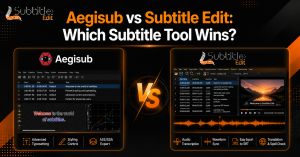
Subtitle Edit stands out for combining basic subtitle editing with advanced tools such as synchronization, OCR, translation support, and format conversion. Compared with simpler editors, it provides more features for detailed subtitle work.
Different subtitle editors may focus on specific needs, such as professional video production, quick text editing, or online captioning. The best choice depends on the user’s workflow and required features.
Strengths, limitations, and typical use cases
Subtitle Edit offers strong timing tools, wide format support, and advanced features for subtitle creation and correction. It is suitable for translators, content creators, and users handling detailed subtitle projects.
However, beginners may need some time to understand advanced options. Users looking for simple caption editing may prefer lighter tools with fewer features.
Learning resources and further reading
Users can improve their Subtitle Edit skills through official documentation, tutorials, community discussions, and practical editing experience. These resources help beginners understand basic tools and allow advanced users to explore automation and advanced features.
Learning through real subtitle projects is one of the best ways to become familiar with timing adjustments, formatting options, and workflow improvements.
Conclusion about this Subtitle Edit software
Subtitle Edit is a powerful and flexible tool for creating, editing, and managing subtitle files. Its wide-format support, timing-correction features, OCR tools, and translation options make it suitable for various subtitle projects.
The software provides useful features for both beginners and experienced users. Simple editing tasks can be completed quickly, while advanced tools like waveform synchronization, scripting, and automation support more detailed workflows.
With regular updates and community involvement, Subtitle Edit continues to remain a reliable choice for users who need accurate subtitle editing without paying for expensive software. Its combination of features, compatibility, and customization options makes it a practical solution for video creators, translators, and subtitle professionals.
FAQs about this Subtitle Edit software
Is Subtitle Edit free to use?
Yes, Subtitle Edit is a free and open-source subtitle editing software. Users can download and use its complete set of features without purchasing a license. It includes tools for creating, editing, syncing, converting, and translating subtitles, making it a useful option for personal and professional subtitle projects.
What subtitle formats does Subtitle Edit support?
Subtitle Edit supports many popular subtitle formats, including SRT, ASS, SSA, SUB, and VTT. This wide compatibility allows users to open, edit, convert, and save subtitle files for different video platforms and editing workflows without requiring additional conversion software.
Can Subtitle Edit automatically sync subtitles?
Yes, Subtitle Edit includes synchronization tools that help users match subtitles with spoken dialogue. Features like waveform and spectrogram views allow users to identify timing differences and adjust subtitle positions more accurately, making it easier to fix subtitles that appear too early or too late.
Can Subtitle Edit translate subtitles into other languages?
Subtitle Edit provides translation support that helps users create subtitles in different languages. It can work with translation tools and machine-translation services to speed up the process, while users can manually review and edit the final text for better accuracy.
Is Subtitle Edit available for Mac and Linux?
Subtitle Edit is primarily developed for Windows, but Mac and Linux users can run it using compatibility tools such as Mono. Performance and feature availability can vary depending on the system setup, so users should check compatibility before using it on non-Windows platforms.
Can Subtitle Edit extract subtitles from videos?
Yes, Subtitle Edit includes OCR features that can convert image-based subtitles into editable text. This is useful for older subtitle formats, DVD subtitles, or videos where captions are stored as images instead of regular text files.
Latest Post:
- Is Subtitle Edit Safe? Download, Malware, and Security Checklist
- Subtitle Edit Online: Best Web Options for Editing Subtitles
- Is Subtitle Edit Open Source? Features, License, and Download Options
- How to Use Whisper Speech Recognition in Subtitle Edit
- Subtitle Edit for Mac: Setup Options and Best Alternatives