Subtitles have become an essential part of modern video content. They help viewers understand dialogue in noisy environments, follow videos in another language, watch content without sound, and access media when hearing is limited.
For creators, accurate subtitles can improve video quality, audience retention, accessibility, and international reach. A video may have great visuals and strong audio, but poorly timed or confusing subtitles can make the experience frustrating.
Subtitle Edit is a useful tool for creating, synchronizing, correcting, translating, and converting subtitles. It supports many subtitle formats and includes features that can help both beginners and experienced creators produce cleaner results.
This guide explains the key principles of creating subtitles that are accurate, easy to read, and comfortable for viewers.
Table of Contents
ToggleStart With Accurate Dialogue
The first step in subtitle creation is making sure the text matches what is actually being said. A subtitle does not always need to include every filler word, pause, or repeated phrase, but it should preserve the meaning of the dialogue.
For example, a speaker may say:
“Um, I think we should probably, you know, try that again.”
A clearer subtitle may be:
“I think we should try that again.”
The second version is easier to read while keeping the intended meaning.
Accuracy is especially important for tutorials, interviews, educational videos, gaming guides, documentaries, and legal or business content. Incorrect names, technical terms, dates, or instructions can confuse viewers.
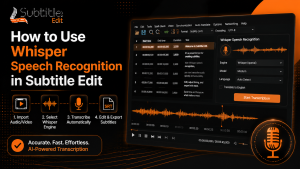
When working with spoken content, listen carefully and review the transcript before finalizing it. Automatic speech-to-text tools can save time, but they may misunderstand accents, names, background noise, or specialized terminology. Always review automatically generated subtitles manually.
Keep Subtitle Lines Easy to Read
Subtitles should be easy to read at a normal viewing speed. Long lines can force viewers to choose between reading and watching the video, which reduces the overall experience.
A useful approach is to keep each subtitle short and clear. Split long sentences at natural points, such as after a complete phrase or before a new idea begins.
For example, instead of writing:
Today we are going to explain how to organize your video files, create subtitles, and export them in a format that works on different platforms.You could split it into:
Today we will explain how to organize video files,
create subtitles, and export them for different platforms.
Avoid splitting names, numbers, or closely connected phrases in awkward places. A subtitle should feel natural when read.
The goal is not only to fit the words on the screen. It is to help viewers understand the message without effort.
Time Subtitles Carefully
Timing is one of the most important parts of subtitle editing. A subtitle should appear when the speaker begins talking and disappear after the line has been read.
If subtitles appear too early, viewers may read dialogue before hearing it. If they appear too late, the video feels out of sync. If they disappear too quickly, viewers may not have enough time to read them.
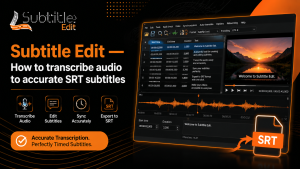
Subtitle Edit provides waveform and video-preview tools that can help creators align text with speech more precisely. These tools are useful because they show visual audio patterns and allow adjustments based on the actual video.
When timing subtitles, consider:
- When the dialogue begins
- When the dialogue ends
- How long the text stays on screen
- The reading speed required
- Whether another subtitle appears too quickly after it
- Whether the subtitle overlaps with important on-screen text
Short subtitles may need less time, while longer subtitles need more time. Viewers should not feel rushed.
Use Consistent Punctuation and Style
Consistency makes subtitles look more professional. Choose a simple style and use it throughout the video.
Decide how you will handle:
- Capital letters
- Speaker names
- Sound effects
- Music lyrics
- Foreign-language phrases
- Interrupted dialogue
- Numbers and dates
- Quotation marks
- Acronyms and technical terms
For example, if you use brackets to describe sounds, continue using the same format:
[Door closes][Applause][Background music]This is especially useful for accessibility-focused subtitles. Captions that describe important non-speech sounds can help viewers understand context that would otherwise be missed.
However, do not overload subtitles with unnecessary descriptions. Only include sound details that are important to understanding the scene.
Check Spelling and Grammar
Small spelling mistakes can reduce trust in a video. They can also make educational or professional content harder to understand.
Before exporting subtitles, check for:
- Misspelled names
- Incorrect punctuation
- Double spaces
- Repeated lines
- Missing words
- Incorrect capitalization
- Incomplete sentences
- Inconsistent technical terms
Spell-checking tools are helpful, but they are not perfect. A spell checker may not recognize product names, game titles, locations, or industry-specific language.
Reading the subtitle file aloud can help identify awkward phrases. Watching the full video with subtitles enabled is also essential because a line that looks correct in an editor may feel too fast or too long in the final video.
Choose the Right Subtitle Format
Different platforms use different subtitle formats. Some common formats include:
- SRT
- WebVTT
- ASS
- SSA
- SUB
- TTML
SRT is one of the most widely supported formats because it is simple and works with many video players, websites, and editing tools. WebVTT is commonly used for web video. ASS and SSA offer more advanced styling options, such as custom fonts, positioning, colors, and effects.
Before exporting, check where the subtitle will be used. A subtitle file intended for YouTube, a website, a streaming platform, or a local video player may need a specific format.
Subtitle Edit supports many subtitle formats, making it useful when converting files for different devices and platforms.
Consider Accessibility From the Beginning
Accessibility should not be treated as an extra step added at the end of production. Subtitles are most effective when they are planned during the editing process.
Good subtitles can help:
- Deaf and hard-of-hearing viewers
- Viewers watching without sound
- People learning another language
- Users in public or noisy places
- Viewers who prefer reading along
- People watching complex tutorials
For educational videos, subtitles can make technical instructions easier to follow. For gaming content, they can help viewers understand dialogue, strategy explanations, item names, and story details.
Creators should also think about visual accessibility. Use readable font sizes, clear contrast, and positioning that does not cover important video elements. If subtitles are burned into the video, test how they appear on both large and small screens.
Use Translation Carefully
Translated subtitles can help content reach a much larger audience. However, direct word-for-word translation does not always communicate the correct meaning.
A good translation should preserve the message, tone, and context of the original dialogue. Idioms, jokes, cultural references, and technical phrases may need special attention.
If possible, have translations reviewed by someone familiar with both languages. Automated translation can be useful as a starting point, but it should not be trusted without review for professional content.
For multilingual videos, keep file names organized. For example:
tutorial-en.srt
tutorial-es.srt
tutorial-fr.srt
tutorial-ur.srt
Clear naming makes it easier to upload the correct subtitles to the correct platform.
Keep Media and Project Files Organized
Subtitle work becomes easier when video files, source transcripts, subtitle versions, exports, and notes are stored clearly. A simple folder structure can prevent accidental overwrites and missing files.
For example, use separate folders for:
- Raw video
- Audio files
- Subtitle drafts
- Final subtitle exports
- Translation files
- Project notes
- Published versions
The same organization habits are useful for all types of digital projects. Whether someone is managing video subtitles, software files, or supported device customization, clear folders, trusted sources, and careful backups make a workflow easier to maintain.
For Nintendo Switch users interested in structured homebrew-related file organization and Atmosphère-based environments, Atmosphere Switch provides information focused on responsible setup management.
Final Thoughts
Clear subtitles improve video quality, accessibility, and audience experience. The best subtitles are accurate, well-timed, easy to read, and consistent from start to finish.
Use a reliable editor, review automatic transcripts carefully, split long lines naturally, test timing with the video, and export in the correct format for your platform. With a thoughtful process, subtitles can make content more professional and more accessible to viewers everywhere.