Overview: what this guide covers and expected outcomes
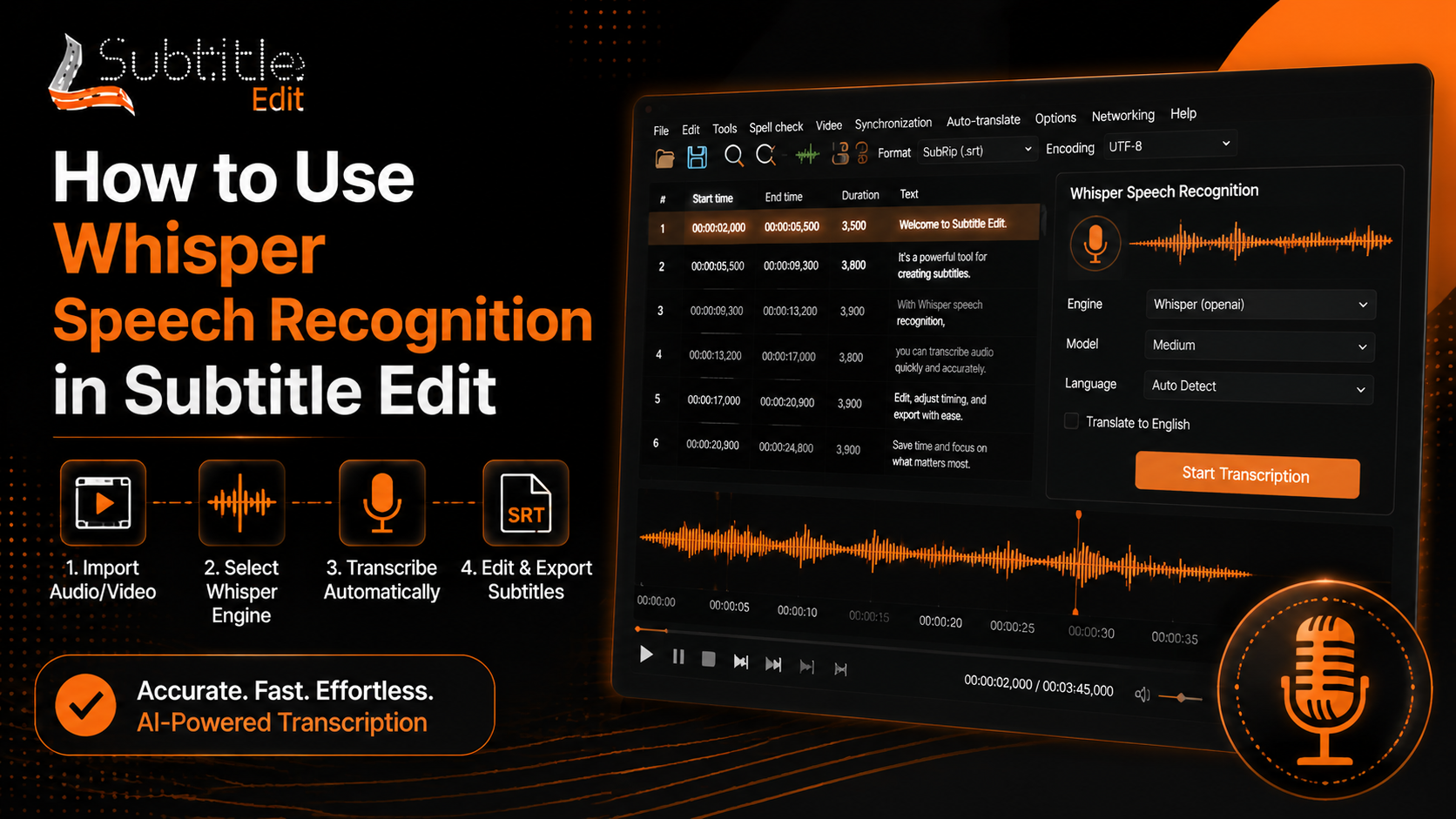
This guide explains how to use Whisper Speech with Subtitle Edit to create accurate automatic transcriptions. It covers the setup process, importing audio or video files, generating subtitles, and reviewing the final results.
By following these steps, users can create subtitles faster while maintaining better accuracy. The workflow is useful for videos, interviews, tutorials, and other content that requires reliable speech-to-text conversion.
Prerequisites: software, models and basic setup
Before running Whisper in Subtitle Edit, users need to prepare the required software, transcription model, and basic system settings. Having the correct setup ensures smoother processing and better transcription results.
The main requirements include an updated version of Subtitle Edit, a compatible Whisper model, and sufficient system resources to process audio or video files.
Install or update Subtitle Edit
Start by installing the latest version of Subtitle Edit from its official source or update an existing installation. Newer versions usually include improved compatibility, bug fixes, and better support for transcription tools like Whisper.
After installation, open Subtitle Edit and check the settings to confirm that the program is ready for subtitle creation and automatic transcription tasks.
Obtain and place Whisper/ggml model files
To use Whisper with Subtitle Edit, users need to download a compatible Whisper model file. These models handle the speech recognition process and convert audio into subtitle text.
After downloading the required model, place it in the correct folder or select it through Subtitle Edit settings. Choosing the right model size can affect transcription speed and accuracy depending on the available system resources.
Supported engines and SE5 notes
Subtitle Edit supports different speech recognition engines, including Whisper-based options and other transcription methods. Users can select an engine based on their accuracy requirements and hardware capabilities.
SE5-related settings may include configuration options to improve transcription performance. Checking the available engine settings helps ensure the selected method works correctly with the installed model and system setup.
Model compatibility and updates
Whisper models come in different versions and sizes, and compatibility can affect how well they work with Subtitle Edit. Keeping models and related tools up to date improves transcription performance and ensures support for newer features.
Users should choose models based on their system’s capabilities and the required level of accuracy. Larger models generally provide better results, while smaller models can process files faster with lower resource usage.
Choosing model size: accuracy vs speed trade-offs
Whisper model size plays an important role in balancing transcription accuracy and processing speed. Smaller models are faster and require less memory, making them suitable for quick tasks or systems with limited resources.
Larger models usually provide more accurate transcriptions, especially for unclear audio, multiple speakers, or complex speech. However, they require more processing power and may take longer to complete the transcription.
Step-by-step: transcribe a single audio or video file
Transcribing a single audio or video file with Whisper in Subtitle Edit involves preparing the media, selecting transcription settings, and reviewing the generated subtitles. Following a clear workflow helps improve accuracy and reduces editing time.
The process begins by checking the source file’s quality, selecting the appropriate Whisper model, and generating subtitles using the transcription feature.
Prepare and clean your source audio
Before starting transcription, ensure the audio file has clear speech and minimal background noise. Better audio quality helps Whisper recognize words more accurately and reduces the amount of correction work later.
Cleaning the source audio may include removing unnecessary noise, improving volume levels, or using a clearer recording. Proper preparation creates a stronger foundation for accurate subtitle generation.
Select engine, model and language settings
Subtitle Edit allows users to choose the transcription engine, Whisper model, and language settings before starting the process. Selecting the correct options helps achieve greater accuracy given the audio quality and project requirements.
Users can choose a suitable model size based on their system’s performance and select the source file’s spoken language. Proper configuration improves recognition quality and reduces manual corrections.
Configure advanced options (VAD, timestamps, segmentation)
Advanced options provide more control over how Whisper processes audio and creates subtitles. Voice Activity Detection (VAD) helps identify spoken sections and remove unnecessary silent parts from the transcription process.
Timestamp settings control subtitle timing accuracy, while segmentation options decide how text is divided into subtitle lines. Adjusting these settings can improve readability and create better-synchronized captions.
Step-by-step setup and run
After selecting the engine, model, and required settings, users can start the transcription process from Subtitle Edit. The software will analyze the audio or video file and generate subtitle text based on the selected Whisper configuration.
During setup, users should review the chosen language, model size, and output options before running the process. This helps avoid incorrect settings and improves the quality of the generated subtitles.
Monitor progress and use the console log
The progress window and console log provide information about the ongoing transcription process. Users can check processing status, identify errors, and understand how the selected model is working.
Monitoring the log is helpful when troubleshooting issues such as missing models, unsupported files, or processing failures. It allows users to make adjustments and run the transcription again with improved settings.
Batch processing with Whisper in Subtitle Edit
Batch processing allows users to transcribe multiple audio or video files together instead of handling each file separately. This workflow saves time when working with large collections of recordings, interviews, or video projects.
Using organized settings and consistent output options helps maintain accuracy and makes it easier to manage multiple subtitle files.
Prepare input/output folders and naming conventions
Before starting batch transcription, create separate folders for source files and generated subtitle outputs. Keeping input and output files organized prevents confusion and makes project management easier.
Using clear file naming conventions helps track different versions and languages. Consistent names also make it easier to locate completed subtitles when working with multiple files simultaneously.
Batch processing with Whisper in Subtitle Edit
Batch processing with Whisper in Subtitle Edit helps users handle multiple audio or video files within a single workflow. Instead of creating subtitles one file at a time, users can process several files together and save time on repetitive tasks.
This feature is useful for large subtitle projects, such as video libraries, course materials, interviews, or content collections. A proper workflow setup helps maintain consistent transcription settings across all files.
Prepare input/output folders and naming conventions
Before starting batch transcription, organize files into separate input and output folders. The input folder should contain the original audio or video files, while the output folder should store the generated subtitle files.
Using clear file names makes large projects easier to manage. A consistent naming system helps identify different videos, languages, and subtitle versions without confusion during editing or review.
Batch settings, resource limits and scheduling
Batch settings allow users to control how multiple files are processed with Whisper in Subtitle Edit. Users can adjust model selection, output options, and processing preferences to maintain consistent results across projects.
Resource limits help manage system performance during large transcription tasks. Adjusting processing settings, memory usage, and workload size can prevent slowdowns and improve overall efficiency.
Batch processing workflow
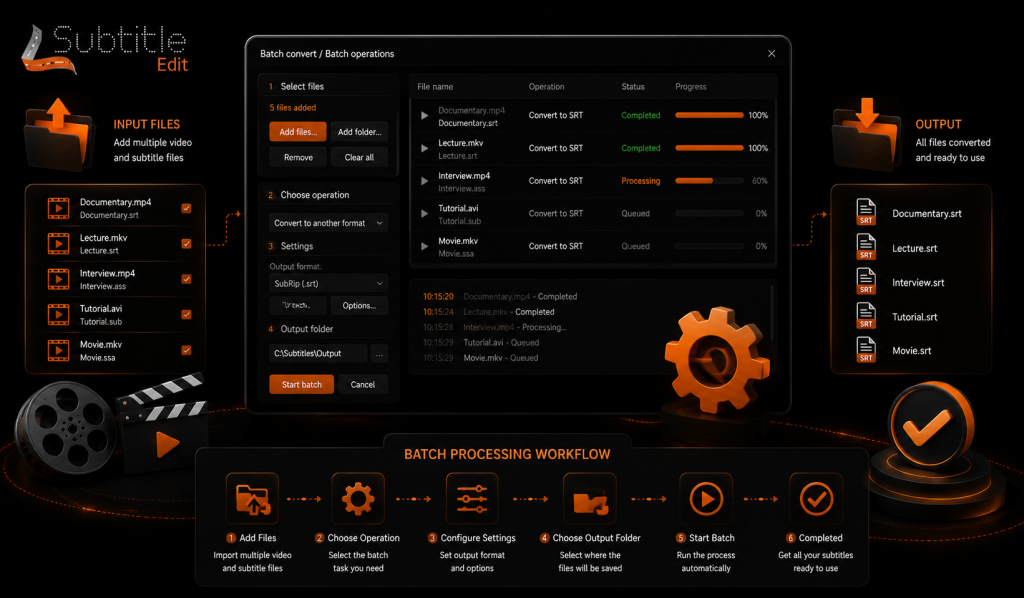
A batch processing workflow usually starts by adding multiple media files, selecting transcription settings, and choosing the output location. Subtitle Edit then processes each file and creates subtitle results based on the selected configuration.
After processing, users can review generated subtitles, correct errors, and export final files. A structured workflow makes it easier to handle large projects while maintaining accuracy and organization.
Advanced settings and post-processing
Advanced settings in Subtitle Edit help users improve the quality and readability of Whisper-generated subtitles. These options allow better control over text formatting, timing adjustments, and final subtitle cleanup.
Post-processing tools are useful after transcription because they reduce manual editing work and help create subtitles that look more natural and professional.
Post-processing options: punctuation, split/merge, alignment
Post-processing options help refine automatically generated subtitles by correcting formatting issues. Punctuation tools improve sentence structure, while split and merge features adjust subtitle lines for better readability.
Alignment tools help match subtitle text with the correct timing of the spoken audio. These adjustments ensure captions appear naturally and remain synchronized with the video.
Troubleshooting and performance optimization
Running Whisper in Subtitle Edit may sometimes cause issues related to models, system resources, or file compatibility. Understanding common problems helps users resolve errors quickly and maintain a smoother transcription workflow.
Performance optimization involves choosing suitable models, adjusting settings, and preparing files correctly. These steps can improve processing speed while maintaining reliable subtitle accuracy.
Common errors and how to fix them
Common issues include missing model files, unsupported media formats, slow processing, or failed transcriptions. Checking installation settings, updating software, and selecting the correct model can often resolve these problems.
If transcription results are inaccurate, users can improve audio quality, adjust language settings, or choose a larger Whisper model. Reviewing configuration options helps identify the cause and achieve better results.
Hardware and performance recommendations (Web)
Whisper performance depends on the available hardware and the size of the selected model. Systems with stronger processors, more memory, or compatible graphics support can handle larger models and faster transcription tasks.
For smoother performance, users should choose settings that match their system capabilities. Smaller models are suitable for faster processing, while higher-capacity models are better when accuracy is the main priority.
When to change models or switch engines
Changing models can improve transcription quality when the current results contain frequent errors or miss important details. Users may switch to a larger model for complex audio or choose a smaller one for faster processing.
Switching engines can also help when a specific workflow requires different features, compatibility, or performance. Testing available options allows users to find the best balance between speed, accuracy, and system usage.
Quick quality checklist and manual review tips
After generating subtitles with Whisper, a quick review helps identify mistakes before publishing. Users should check subtitle timing, spelling, punctuation, speaker changes, and overall readability.
Manual review is especially important for unclear audio, technical terms, or multiple speakers. Small corrections can greatly improve the final subtitle quality and viewer experience.
Tips and best practices for reliable transcripts
Reliable transcripts require a combination of good source audio, suitable model settings, and careful review. Preparing clear recordings and selecting the right transcription options helps improve accuracy.
Users should regularly check generated subtitles, correct errors, and maintain consistent formatting. A structured review process ensures better results for different types of videos and audiences.
FAQs
Whisper speech recognition in Subtitle Edit helps users create accurate subtitles from audio and video files. These common questions explain how Whisper works, what settings are useful, and how users can improve transcription results.
What is Whisper speech recognition in Subtitle Edit?
Whisper speech recognition is an AI-based transcription feature that converts spoken audio into subtitle text inside Subtitle Edit. It helps users generate captions automatically and then edit them for timing, accuracy, and formatting.
Is Whisper free to use with Subtitle Edit?
Whisper can be used with Subtitle Edit without paying for a separate transcription service. However, users may need to download model files and ensure sufficient system resources, depending on the chosen model size.
Which Whisper model should I use for Subtitle Edit?
The best Whisper model depends on your needs and hardware. Smaller models provide faster processing, while larger models usually offer better accuracy for unclear audio, multiple speakers, or complex recordings.
Why are my Whisper subtitles inaccurate?
Inaccurate results can occur due to poor audio quality, background noise, incorrect language settings, or the use of a smaller model. Improving the source audio and selecting a suitable model can help produce better transcripts.
Can Whisper create subtitles automatically from videos?
Yes, Whisper can analyze audio from video files and automatically generate subtitles. After transcription, users can review, edit, and export subtitles in formats such as SRT and other supported formats.
Does Subtitle Edit Whisper support multiple languages?
Whisper supports transcription in many languages, making it useful for multilingual projects. Users can select the correct language settings to improve recognition accuracy and create subtitles for different audiences.
Conclusion
Subtitle Edit with Whisper speech recognition provides an efficient way to create subtitles from audio and video files. Its automatic transcription features reduce manual work while still allowing users to review and improve the final results.
By choosing the right model, preparing clear audio, and properly adjusting settings, users can create more accurate transcripts. Whisper, combined with Subtitle Edit, offers a flexible workflow for creators, translators, and video professionals.
Latest Post:
- Is Subtitle Edit Safe? Download, Malware, and Security Checklist
- Subtitle Edit Online: Best Web Options for Editing Subtitles
- Is Subtitle Edit Open Source? Features, License, and Download Options
- How to Use Whisper Speech Recognition in Subtitle Edit
- Subtitle Edit for Mac: Setup Options and Best Alternatives