Overview
Subtitle Edit is a free subtitle creation and editing tool designed for working with video subtitles. It helps users create new subtitles, correct existing subtitle files, synchronize timing, translate captions, and improve subtitle quality through different editing features.
The software is mainly used by content creators, translators, video editors, and subtitle professionals who need better control over subtitle accuracy and timing. It supports many common subtitle formats, making it useful for handling subtitles from different sources.
Subtitle Edit provides a simple interface with advanced tools for both beginners and experienced users. You can edit subtitle text, adjust timing, check spelling, compare subtitle versions, and use speech recognition features to create subtitles more efficiently.
The tool is available for Windows and focuses on offline subtitle editing, which gives users more control over their files and workflow. Since most editing tasks happen locally, users can manage subtitle projects without depending on online services.
This complete user guide explains the main features of Subtitle Edit, installation steps, subtitle editing methods, synchronization options, supported formats, troubleshooting tips, and practical ways to use the software effectively.
What Subtitle Edit is and who it’s for
Subtitle Edit is a professional subtitle editing application that allows users to create, modify, synchronize, and translate subtitle files. It provides tools to adjust subtitle timing, correct text errors, convert formats, and improve subtitle accuracy across different types of video content.
The software is designed for a wide range of users, from beginners who want to add captions to personal videos to professionals working on translation and localization projects. Video editors, content creators, translators, educators, and accessibility teams can use Subtitle Edit to manage subtitle workflows more efficiently.
Unlike simple subtitle viewers, Subtitle Edit offers detailed control over timing, formatting, and synchronization. Users can analyze subtitle files, compare changes, and make precise adjustments to ensure captions match the spoken content correctly.
Key benefits and common use cases
Subtitle Edit helps users create high-quality subtitles while reducing the time required for manual editing. Its combination of editing tools, format support, and synchronization features makes it suitable for a range of subtitle-related tasks.
Common benefits and uses include:
- Creating subtitles from scratch for movies, tutorials, presentations, and online videos.
- Correcting spelling mistakes, translation errors, and subtitle timing issues.
- Synchronizing subtitles with audio when captions appear too early or too late.
- Converting subtitle files between different formats for better compatibility.
- Improving accessibility by adding accurate captions for viewers with hearing difficulties.
Many users also rely on Subtitle Edit for translation projects because it provides tools that make reviewing and adjusting multilingual subtitles easier. Its offline workflow is useful for people who prefer keeping video and subtitle files on their own systems instead of uploading them to online platforms.
Subtitle Edit Key Features You Should Know
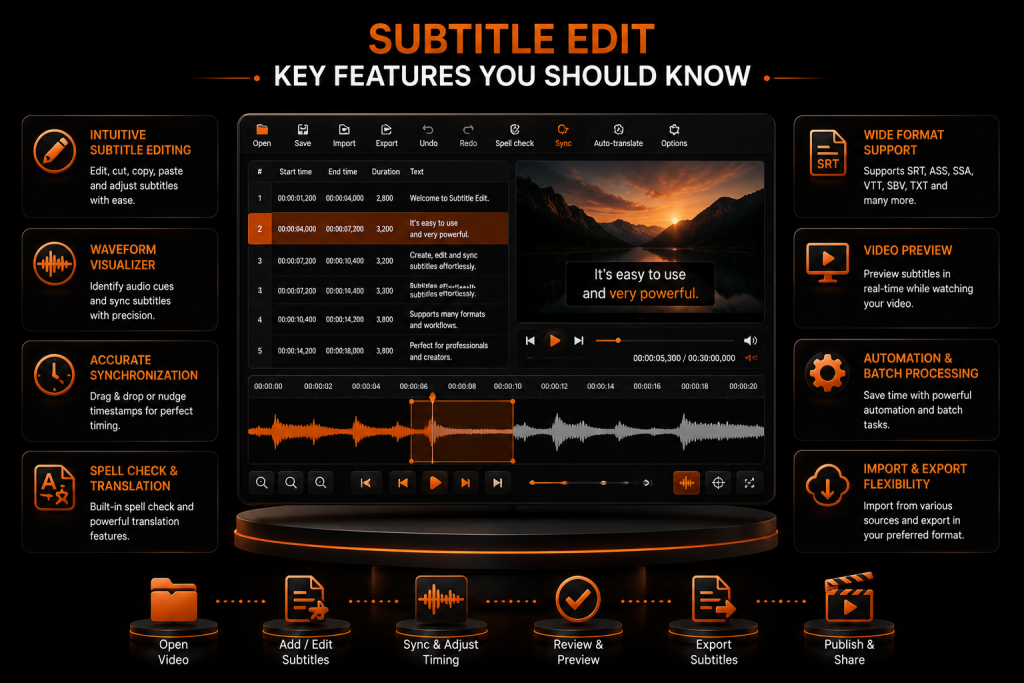
Subtitle Edit includes a wide range of tools that help users create, edit, and manage subtitle files with better accuracy. Its features are designed to support both simple subtitle adjustments and advanced editing workflows for professional users.
The software provides options for subtitle synchronization, text correction, format conversion, translation support, and timing control. These tools allow users to handle different subtitle tasks without needing multiple applications.
Visual subtitle editor and timeline
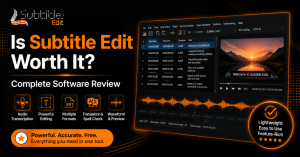
The visual subtitle editor in Subtitle Edit provides a clear workspace where users can view subtitle text, timing information, and video playback together. This layout makes it easier to understand how subtitles appear in relation to the spoken dialogue and scenes.
The timeline view helps users adjust subtitle start and end times with better precision. Users can move subtitle sections, change display duration, and fix timing problems by comparing subtitles with the video timeline.
The editor also includes waveform and spectrogram views, which help identify exact moments when speech begins and ends. These tools are especially useful when subtitles need to be accurately synchronized with audio.
With the visual editing interface, users can quickly review subtitle placement, correct delays, and improve the overall viewing experience. It reduces the need for manual guessing and makes subtitle adjustments more efficient.
Waveform and spectrogram audio sync
Subtitle Edit includes waveform and spectrogram tools that help users match subtitle timing with the actual audio of a video. These visual tools display changes in sound levels and speech patterns, allowing users to identify where dialogue starts and ends more accurately.
The waveform view shows the audio intensity throughout the video, while the spectrogram provides a detailed visual representation of sound frequencies. Together, they help users locate spoken words, pauses, and background sounds when adjusting subtitle timing.
These features are especially useful for creating subtitles from scratch or correcting subtitles that do not match the audio properly. Instead of relying only on video playback, users can use the audio visualization to make precise timing adjustments.
Subtitle synchronization and timing tools
Subtitle Edit provides several synchronization tools that help fix subtitles that appear too early or too late compared to the video. Users can manually adjust subtitle timing or use automatic synchronization based on specific timing points.
The software allows users to change subtitle start times, end times, and display duration. It also supports shifting multiple subtitle lines together, which is helpful when an entire subtitle file has a consistent timing delay.
For larger projects, synchronization tools make it easier to maintain proper subtitle flow throughout a video. Users can align subtitles with speech, adjust reading speed, and ensure captions remain visible for an appropriate amount of time.
These timing features are useful for movies, educational videos, online content, and translation projects where accurate subtitle placement is important for a smooth viewing experience.
Text editing, search & replace, and styles
Subtitle Edit provides a complete text-editing workspace that helps users quickly create and modify subtitle content. The editor allows users to correct spelling mistakes, rewrite dialogue, adjust formatting, and manage subtitle lines without switching between different tools.
The built-in search-and-replace feature makes it easier to update repeated words or phrases throughout an entire subtitle file. This is useful when correcting translation errors, changing names, or applying consistent text updates throughout a project.
Users can also manage subtitle styles by adjusting elements such as font settings, alignment, spacing, and formatting options. These controls help create subtitles that are easier to read and match the requirements of different video platforms or projects.
OCR from video
Subtitle Edit includes OCR tools that help users extract text from video images, especially when working with subtitles that are already embedded into video content. This feature can recognize visible subtitle text and convert it into editable subtitle files.
OCR is useful for converting hardcoded subtitles into separate subtitle tracks that can be edited, translated, or synchronized. Users can process subtitle images from videos and make corrections after the recognition process.
The accuracy of OCR depends on factors such as video quality, subtitle clarity, font style, and background contrast. After extraction, users can review and edit the recognized text to improve accuracy before saving the final subtitle file.
This feature is helpful when original subtitle files are unavailable and users need to recover existing captions from a video source.
Machine translation integration and spellcheck
Subtitle Edit includes tools that help users improve subtitle accuracy through translation support and text correction features. The machine translation integration allows users to translate subtitle content between different languages, making it easier to create multilingual captions.
Users can review translated text directly inside the subtitle editor and make manual corrections when needed. This helps maintain the correct meaning of dialogue, especially when automatic translation does not fully understand context or expressions.
The built-in spellcheck feature helps identify spelling mistakes and typing errors in subtitle files. It allows users to review incorrect words and improve subtitle quality before publishing or exporting the final version.
Combining translation and spellcheck tools helps users create cleaner subtitles while reducing the time required for manual checking and editing.
Supported file types and codecs
Subtitle Edit supports a wide range of subtitle formats, allowing users to open, edit, convert, and save files used by different media players and video platforms. This flexibility makes it suitable for handling subtitle projects from various sources.
Common supported subtitle formats include SRT, ASS, SSA, SUB, VTT, and other popular caption formats. Users can convert between different formats when they need better compatibility with specific software or devices.
The software also works with different video and audio sources through integrated playback support. Users can load media files, analyze timing, and edit subtitles while viewing the related video content.
Support for multiple file types and media formats makes Subtitle Edit useful for personal projects, professional subtitle work, translation tasks, and accessibility-focused content creation.
Common subtitle formats (SRT, ASS/SSA, VTT, etc.)
Subtitle Edit supports many widely used subtitle formats, allowing users to work with files created by different tools and platforms. This format compatibility helps users edit, convert, and prepare subtitles without needing separate applications for each file type.
SRT is one of the most common subtitle formats supported by Subtitle Edit. It stores subtitle text along with start and end timing information, making it suitable for most video players and online platforms.
ASS and SSA formats provide more advanced styling options, including font settings, positioning, colors, and visual effects. These formats are often used when subtitles require detailed customization or specific visual layouts.
VTT is another supported format commonly used for web-based video content. It is widely used with HTML5 video players and online learning platforms because it works well with browser-based captions.
By supporting different subtitle formats, Subtitle Edit allows users to convert files between formats and maintain compatibility across various devices, media players, and publishing platforms.
Video and audio container support
Subtitle Edit works with different video and audio containers through its media playback and subtitle editing workflow. This allows users to load video files, preview subtitles, and adjust timing while watching the content.
Common video containers such as MP4, MKV, and AVI can be used with Subtitle Edit when the required codecs are available on the system. The software uses media frameworks to handle playback and synchronize subtitles with video content.
Audio support also plays an important role when creating or adjusting subtitles. Users can analyze spoken dialogue, use waveform tools, and match subtitle timing with audio signals for better accuracy.
The ability to work with various media containers makes Subtitle Edit useful for different types of video projects, including movies, tutorials, presentations, and online content.
Character encoding, frame rates and conversions
Subtitle Edit supports different character encoding options to help users work with subtitles in multiple languages and writing systems. Proper encoding ensures that special characters, accented letters, and non-English text appear correctly without formatting problems.
Users can manage encoding settings when opening or saving subtitle files. This is useful when working with subtitles created from different sources, as incorrect encoding can cause missing characters or unreadable text.
Frame rate handling is another important feature for accurate subtitle synchronization. Subtitle Edit allows users to adjust subtitle timing based on different video frame rates, helping prevent timing differences when moving subtitles between videos.
The software also provides conversion tools for changing subtitle formats, adjusting timing values, and adapting subtitles for different video standards. These options help users maintain subtitle accuracy during editing and export processes.
Download, installation and system requirements
Before using Subtitle Edit, users need to download the software from a reliable source and install it on a compatible system. The installation process is straightforward and allows users to quickly access subtitle editing tools after setup.
Subtitle Edit is mainly designed for Windows systems and works with common modern Windows versions. Users should ensure that their system has enough storage space, updated software components, and proper media support for smooth operation.
The software does not require high-end hardware because most subtitle editing tasks use limited system resources. However, working with large video files, waveform analysis, or advanced processing features may benefit from a faster processor and sufficient memory.
After installation, users can configure basic settings, select preferred language options, and connect required media tools if needed. This prepares the application to efficiently create, edit, and synchronize subtitle files.
Windows, macOS and Linux installation steps
Subtitle Edit is primarily developed for Windows, where users can install the application through the available installer package. The installation process usually involves downloading the setup file, opening the installer, selecting the installation location, and completing the setup instructions.
After installation, users can launch Subtitle Edit and configure basic preferences such as interface language, subtitle settings, and media playback options. Keeping the software updated helps users access new features, improvements, and compatibility fixes.
For macOS and Linux users, Subtitle Edit can be used through compatibility solutions that allow Windows applications to run on other operating systems. Users may need additional tools or environments depending on their system configuration.
Before installation, users should check that their operating system meets the required software conditions. Proper setup of media components and supporting tools can improve video playback and subtitle editing performance.
Portable versions and installer options
Subtitle Edit is available in different distribution options to match different user preferences. The standard installer version integrates the application into the operating system and creates shortcuts for easier access.
A portable version allows users to run Subtitle Edit without a traditional installation process. This option is useful for users who want to keep the software on a USB drive or use it on multiple computers without changing system files.
The portable package stores the required application files in a single folder, making it easier to move, back up, or remove when needed. Users can start the program directly from the folder after extracting the files.
Choosing between the installer and portable version depends on the user’s workflow. The installer is suitable for regular use on a personal computer, while the portable version provides more flexibility for users who need a movable setup.
Updating and version compatibility
Keeping Subtitle Edit updated helps users access the latest improvements, bug fixes, and compatibility changes. New versions may include better subtitle processing tools, updated format support, and improvements for handling different media files.
Users should check that their installed version works correctly with their operating system and existing subtitle projects. Updating the software can help prevent issues caused by outdated features or compatibility problems with newer file formats.
Before upgrading, users may want to keep backups of important subtitle projects and custom settings. This helps avoid losing changes if a new version requires adjustments or changes the way certain features work.
Regular updates also ensure better support for modern video workflows, encoding standards, and subtitle formats used across different platforms.
Getting started: open, edit, save
Getting started with Subtitle Edit begins by opening an existing subtitle file or creating a new subtitle project. Users can load subtitle files from their computer and view the text, timing information, and video preview inside the main editing interface.
After opening a file, users can edit subtitle text, adjust timing, correct mistakes, and review changes while playing the connected video. The interface provides tools that make it easier to manage individual subtitle lines or complete subtitle tracks.
When editing is complete, users can save their work in the original format or convert it into another supported subtitle format. The save options help maintain compatibility with different video players, websites, and editing applications.
A simple open, edit, and save workflow helps beginners quickly grasp the basics of Subtitle Edit while still providing advanced controls for more complex subtitle projects.
Importing subtitles and video
Subtitle Edit allows users to import existing subtitle files and connect them with video content for editing and synchronization. Users can open subtitle files from their computer and load a related video file to preview how captions appear during playback.
When a video is added, the software displays subtitle lines along with timing information, making it easier to compare text with spoken dialogue. This helps users identify errors such as incorrect timing, missing lines, or subtitles that appear too early or too late.
Users can work with different subtitle formats and convert files when needed. Importing subtitles and video together creates a complete editing environment where text changes and timing adjustments can be checked immediately.
This workflow is useful for improving existing subtitles, preparing translated captions, or creating new subtitle tracks from video content.
Basic editing workflow and shortcuts
The basic editing workflow in Subtitle Edit involves reviewing subtitle lines, modifying text, adjusting timing, and saving the final file. Users can select individual subtitle entries, make corrections, and preview changes while watching the video.
The editor provides tools for common tasks such as adding new subtitle lines, deleting unnecessary entries, splitting or merging subtitles, and changing display times. These options help users maintain proper subtitle flow and readability.
Keyboard shortcuts make frequent editing tasks faster by reducing the need to navigate through menus. Users can use shortcuts for actions like moving between subtitle lines, starting playback, adjusting timing, and applying common editing commands.
Learning the basic workflow and shortcuts helps users complete subtitle projects more efficiently, especially when working with long videos or multiple subtitle files.
Saving, exporting and format conversion
Subtitle Edit allows users to save their subtitle projects in various formats to suit their requirements. After completing edits, users can save changes while keeping the original subtitle structure or export the file into another supported format.
The format conversion feature helps users adapt subtitle files for different media players, video platforms, and editing applications. For example, a subtitle file can be converted between formats such as SRT, ASS, SSA, and VTT while maintaining timing information.
Users can also adjust settings during export, including encoding options, subtitle formatting, and timing preferences. These controls help ensure that subtitles display correctly across different devices and platforms.
Saving and conversion options make Subtitle Edit flexible for a range of workflows, whether users are preparing subtitles for personal videos, online publishing, translation projects, or professional media production.
Advanced editing tools
Subtitle Edit includes advanced editing tools that provide more control over subtitle accuracy, timing, and formatting. These features are designed for users who need more than basic text changes and want to manage detailed subtitle workflows.
Advanced tools help users analyze subtitle quality, improve synchronization, and handle complex editing tasks more efficiently. They are useful for professional translators, video editors, and users working on large subtitle projects.
Features such as detailed timing adjustments, error checking, translation support, and audio analysis allow users to refine subtitles with greater precision.
Using these advanced options, users can create cleaner, more accurate subtitles while reducing the time required for manual corrections and repeated editing tasks.
Precise timing adjustments and frame-accurate editing
Subtitle Edit provides detailed timing controls that help users adjust subtitle appearance with high accuracy. Users can modify the start and end times of individual subtitle lines to ensure that captions match the spoken dialogue correctly.
Frame-accurate editing allows users to make small timing changes based on specific moments in a video. This is useful when subtitles need to appear exactly when a person starts speaking or disappear at the right point after dialogue ends.
The software also provides tools for shifting subtitles, adjusting durations, and correcting timing differences across an entire subtitle file. These options help maintain a smooth viewing experience and prevent subtitles from appearing out of sync.
Precise timing features are especially useful for professional subtitle projects where accuracy is important, such as films, educational videos, and translated content.
Split, merge, duplicate and batch edit lines
Subtitle Edit includes tools for efficiently managing multiple subtitle lines. Users can split long subtitle entries into smaller sections, making them easier to read and better synchronized with video dialogue.
The merge feature allows users to combine separate subtitle lines when they belong together. This helps maintain proper sentence flow and prevents unnecessary breaks in captions.
Users can also duplicate subtitle lines when creating repeated content or preparing different subtitle versions. These editing options reduce manual effort and speed up subtitle management.
Batch editing tools allow users to apply changes to multiple subtitle entries at the same time. This is useful for adjusting timing, formatting, or text settings across large subtitle files without editing each line individually.
Styling, positioning and multiple tracks
Subtitle Edit provides styling and positioning options that help users customize how subtitles appear on screen. These controls allow users to adjust subtitle placement, formatting, and appearance based on the requirements of different video projects.
Users working with advanced subtitle formats can manage elements such as font styles, colors, alignment, and screen position. This is useful when creating subtitles that need specific visual layouts or when matching the style requirements of a media project.
The software also supports working with multiple subtitle tracks, allowing users to manage different language versions or alternative caption files within the same workflow. This makes it easier to compare, edit, and prepare subtitles for multilingual content.
Multiple track support is especially helpful for translation projects, educational videos, and media files that require several subtitle versions.
Spellcheck, dictionary and proofreading tools
Subtitle Edit includes spellcheck and proofreading features that help users improve subtitle accuracy and readability. These tools identify spelling mistakes and help users correct common text errors before exporting the final subtitle file.
The dictionary support allows users to check words, add custom terms, and manage language-specific vocabulary. This is useful when working with names, technical terms, or specialized content that may not be recognized by standard dictionaries.
Proofreading tools help users review subtitle text for consistency, grammar issues, and typing mistakes. By checking subtitles before publishing, users can reduce errors and create cleaner captions.
These features are valuable for translators, content creators, and editors who need accurate subtitles that provide a better experience for viewers.
Audio-based editing and synchronization
Subtitle Edit provides audio-based editing tools that help users create and adjust subtitles by matching text with spoken dialogue. These features are useful when subtitles need accurate timing or when users are creating captions from an audio source.
By working with the audio track, users can identify speech patterns, pauses, and dialogue sections more easily. This makes it simpler to place subtitle lines at the correct moments without relying only on manual video playback.
Audio synchronization tools help correct subtitle delays and improve timing consistency throughout a video. Users can adjust subtitle positions, compare audio with text, and make precise changes to ensure captions match the speaker’s words.
This workflow is especially useful for creating subtitles from interviews, tutorials, lectures, and other videos where accurate dialogue timing is important.
Visual waveform and spectrogram alignment
Subtitle Edit includes waveform and spectrogram views that provide a visual representation of the audio track. These tools help users identify the exact points where speech begins and ends, making subtitle synchronization more accurate.
The waveform displays changes in audio volume, while the spectrogram shows detailed frequency information from the sound. Together, they allow users to locate dialogue sections and adjust subtitle timing based on visible audio patterns.
Using waveform and spectrogram alignment reduces the need for guessing subtitle positions. Users can place captions more precisely, correct timing errors, and improve the overall synchronization between audio and subtitles.
These visual tools are particularly helpful for professional subtitle editing, translation work, and projects where accurate timing is required.
OCR, scanning and subtitle extraction
Subtitle Edit provides OCR and subtitle extraction tools that help users convert image-based subtitles into editable text. These features are useful when subtitles are embedded directly into video or available only as image files instead of editable subtitle formats.
OCR technology analyzes subtitle images and recognizes the characters displayed on the screen. After extraction, users can review, correct, and save the converted text as a standard subtitle file.
Subtitle extraction is commonly used when original subtitle files are unavailable. It allows users to recover captions from older videos, scanned subtitle sources, or content where subtitles are permanently added to the video image.
The extraction process may require manual checking because OCR accuracy depends on video quality, font style, background contrast, and subtitle clarity. Users can improve results by reviewing recognized text and correcting any errors before final export.
OCR setup and supported engines
Subtitle Edit provides OCR setup options that let users configure subtitle recognition to suit their source material. These settings help improve the accuracy of text extraction from images and video frames.
The software supports OCR engines that recognize characters from subtitle images and convert them into editable text. Users can select appropriate language settings and recognition options based on the subtitle language they are processing.
Proper OCR configuration can improve results when working with different fonts, resolutions, and subtitle styles. Users may need to adjust settings or train the recognition model on specific content for better accuracy.
After OCR processing, Subtitle Edit provides editing tools to review extracted subtitles, correct mistakes, and prepare the final subtitle file for use with videos or media players.
Automation, scripting and batch processing
Subtitle Edit includes automation features that help users manage repetitive subtitle tasks more efficiently. These tools are useful for users who work with multiple subtitle files and need faster ways to apply common changes.
Automation options reduce manual editing by enabling users to process multiple files, apply consistent settings, and complete repetitive tasks in fewer steps. This is especially helpful for professional subtitle workflows and large projects.
Batch processing helps users save time when working with multiple subtitle files that require similar adjustments, such as format conversion, timing changes, or text corrections.
Built-in batch functions and common tasks
Subtitle Edit provides built-in batch functions that allow users to perform common subtitle operations on multiple files. These tools help maintain consistency across projects while reducing the effort required for individual edits.
Common batch tasks include converting subtitle formats, adjusting timing, changing encoding settings, and applying text-related corrections across several files.
Users can also use batch processing when preparing subtitles for different platforms or media projects. Instead of opening and editing each file separately, multiple files can be processed together using selected settings.
These features are particularly useful for translators, content creators, and subtitle professionals who manage large collections of subtitle files.
FAQS
Is Subtitle Edit free to use?
Yes, Subtitle Edit is a free subtitle editing application that provides tools for creating, editing, synchronizing, and converting subtitle files. Users can access many advanced features without paying for a license, making it suitable for both beginners and professional subtitle editors.
Can Subtitle Edit create subtitles from audio?
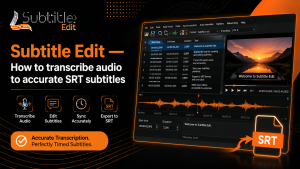
Yes, Subtitle Edit can help users create subtitles from audio by using audio visualization tools, speech recognition options, and manual editing features. Users can analyze audio, place subtitle lines accurately, and adjust timing to match spoken dialogue.
Does Subtitle Edit support multiple subtitle formats?
Yes, Subtitle Edit supports many popular subtitle formats, including SRT, ASS, SSA, and VTT. Users can open, edit, convert, and save subtitle files in various formats to suit their requirements and compatibility needs.
Can Subtitle Edit extract subtitles from videos?
Subtitle Edit can help extract text from image-based subtitles using OCR tools. This feature is useful for converting burnt-in subtitles into editable text, although users may need to review and correct OCR results for accuracy.
Is Subtitle Edit available for macOS and Linux?
Subtitle Edit is mainly designed for Windows systems. Users on macOS and Linux may be able to run it through compatibility tools or alternative environments, but the experience depends on the system setup and available support.
How can I fix subtitle timing problems in Subtitle Edit?
Users can fix subtitle timing issues by adjusting start and end times, using synchronization tools, and comparing subtitles with the video waveform or spectrogram. These features help align captions with spoken dialogue more accurately.
Conclusion
Subtitle Edit is a powerful tool for creating, editing, and managing subtitle files with detailed control over text, timing, and formatting. Its combination of basic editing features and advanced tools makes it suitable for a range of subtitle workflows.
From simple corrections to professional subtitle production, users can benefit from features such as waveform synchronization, OCR extraction, format conversion, spellcheck, and batch processing.
By understanding the available tools and workflows, users can create accurate, well-timed subtitles that improve accessibility and enhance the viewing experience across platforms.
Latest Post:
- Is Subtitle Edit Safe? Download, Malware, and Security Checklist
- Subtitle Edit Online: Best Web Options for Editing Subtitles
- Is Subtitle Edit Open Source? Features, License, and Download Options
- How to Use Whisper Speech Recognition in Subtitle Edit
- Subtitle Edit for Mac: Setup Options and Best Alternatives