Introduction
There are no downloadable programs like Subtitle edit on iPad since iPads run on a mobile operating system (iOS) rather than a desktop operating system.
However, there are several subtitle editing apps available on the App Store that offer similar features. Here’s a brief rundown of what you can expect with these subtitle editing apps:
- Import and Edit Existing Subtitle Files: These apps allow you to import subtitle files in common formats like SRT and edit the text within the subtitles.
- Create New Subtitles from Scratch: You can use these apps to create new subtitles for your videos by typing them in manually.
- Synchronize Subtitles with Video: Many subtitle editing apps have features to help you synchronize the subtitles with your video, ensuring they appear at the right time. This may involve functionalities like waveform or spectrogram to visually see the audio and place subtitles accordingly.
- Export Edited Subtitles: Once you’ve finished editing your subtitles, you can export them in the desired format to use with your video.
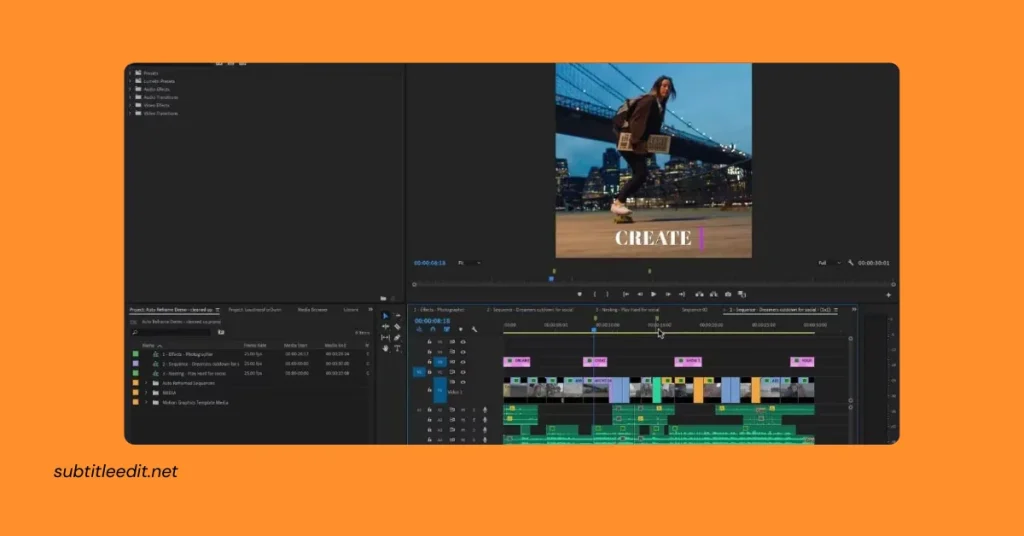
Finding a Subtitle Editor App for iPad
There are several SubtitleEdit apps available for iPad that can help you create, edit, and synchronize subtitles for your videos. These apps offer a convenient way to work on your subtitles on the go, without needing a desktop computer.
Here are some popular options to consider:
SRTool
is a lightweight and easy-to-use subtitle editor that allows you to import existing subtitle files, create new subtitles from scratch, and synchronize subtitles with your video. It has a built-in video viewer and timeline to help you ensure your subtitles are timed accurately.
Bir Subtitle Editor
is a professional-grade subtitle editor that supports a wide variety of subtitle formats. It allows you to edit text, change fonts and colors, and synchronize subtitles with your video. Bir Subtitle Editor also has a unique feature that allows you to translate subtitles between different languages (although this feature is currently not available).
Video Subtitle Edit Pro
is another powerful subtitle editor that offers a variety of features, including waveform editing for precise subtitle timing, text-to-speech conversion, and batch processing.
These are just a few of the many subtitle editor apps available for iPad. When choosing an app, consider your needs and budget. If you need a simple and easy-to-use app for basic subtitle editing, then SRTool or Bir Subtitle Editor may be a good option. If you need a more powerful app with advanced features, then Video Subtitle Edit Pro may be a better choice.
Here are some additional factors to consider when choosing a subtitle editor app for iPad:
- Supported File Formats: Make sure the app supports the subtitle format you need to work with (e.g., SRT, VTT, etc.).
- Features: Consider the features that are important to you, such as waveform editing, text-to-speech conversion, and translation.
- Price: Some subtitle editor apps are free, while others require a paid subscription.
- User Reviews: Read reviews of different apps before you download one to see what other users think.
Editing Subtitles with iPad Apps
Once you’ve downloaded a subtitle edit on ipad app, you can use it to import, edit, and format subtitles for your videos. Here’s a breakdown of the typical editing process:
Importing Subtitle Files:
Most iPad subtitle editor apps allow you to import existing subtitle files in common formats like SRT (SubRip Text). The import process usually involves browsing your iPad’s storage or using file sharing services like iCloud Drive to locate the subtitle file.
Editing Text:
Once imported, you can edit the text of the subtitles directly within the app. This might involve correcting typos, changing wording, or adjusting the phrasing for better readability. Some apps may offer features like spell-checking or autocorrect to assist you.
Timing Adjustments:
An important aspect of subtitle editing is ensuring the subtitles appear at the right time relative to the audio in your video. Many apps provide a visual timeline or waveform view of the video’s audio, allowing you to see where subtitles should be placed for accurate synchronization. You can then adjust the start and end times of each subtitle line to match the spoken dialogue in the video.
Formatting Appearance:
Some apps let you format the appearance of your subtitles. This might involve changing the font style, size, and color for better visibility. You could also adjust background opacity or add outlines for improved readability, especially against contrasting video backgrounds.
Additional Features:
While core editing functions are common, some apps offer additional features that can enhance your workflow. These may include:
- Translation: A few advanced apps might allow subtitle translation between languages. This can be helpful if you’re working with subtitles in a foreign language.
- Text-to-Speech Conversion: This feature, if available, can be used to generate subtitles automatically from an audio file. However, it might require further editing to ensure accuracy.
- Burning Subtitles into Video: Some apps might offer the functionality to permanently integrate the edited subtitles into your video file. This creates a single video with embedded subtitles, eliminating the need for separate subtitle files.
Exporting Your Edited Subtitles on iPad
After meticulously editing your subtitles on your iPad app, you’ll want to export them in a format suitable for your needs.
Here’s a closer look at the typical export options:
Saving as a New Subtitle File:
This is the most common option. You can export your edited subtitles as a new file in the same format they were imported in, typically SRT (SubRip Text). This creates a separate subtitle file that can be used with various video players or editing software that supports external subtitles. Most apps allow you to specify a filename and choose a location on your iPad to save the exported subtitle file.
Integration with Video Editing Project:
If you’re using a video editing app on your iPad that supports embedded subtitles, you might be able to directly export your edited subtitles for integration with your video project. This functionality streamlines the workflow by eliminating the need for separate subtitle files. However, not all iPad video editing apps offer this feature, so check your app’s capabilities beforehand.
Conclusion
In conclusion, iPad subtitle editing apps offer a versatile and portable solution for creating, editing, and managing subtitles for your videos. With a variety of apps available, you can choose one that suits your needs and budget.
These apps allow you to import existing subtitles, edit text, adjust timings, format the appearance, and even potentially translate subtitles or burn them into your video. Once you’ve finished editing, you can export your work as a new subtitle file or integrate it with your video editing project for a streamlined workflow.
So, whether you’re a casual video creator or a professional working on the go, iPad subtitle editing apps can empower you to add that extra layer of polish and accessibility to your videos.
FAQs
Is Subtitle Edit available for iPad?
Subtitle Edit is primarily designed for Windows computers and does not have a native version for iPad or iOS devices. However, there may be alternative subtitle editing apps available on the App Store for iPad users.
What are some alternative subtitle editing apps for iPad?
While Subtitle Edit outline itself is not available for iPad, there are several subtitle editing apps specifically designed for iOS devices. Some popular options include:
Subtitle Edit Pro: This is a dedicated subtitle editing app available on the App Store for iPad users. It offers features for creating, editing, and syncing subtitles on iOS devices.
Subtitle Master: Another subtitle editing app for iPad that allows users to create, edit, and sync subtitles directly on their iOS devices.
Subtitle Viewer: A simple subtitle viewer and editor for iPad, allowing users to view and edit subtitles in various formats.
Can I transfer subtitle files edited on Subtitle Edit to my iPad?
While Subtitle Edit itself cannot be used on iPad, you can still edit subtitle files on your computer using Subtitle Edit and then transfer the edited files to your iPad using cloud storage services, email, or file transfer methods. Once transferred, you can use compatible subtitle editing apps on your iPad to further edit or sync the subtitles as needed.
Are there any limitations when using subtitle editing apps on iPad compared to Subtitle Edit?
Subtitle editing apps for iPad may have some limitations compared to Subtitle Edit on Windows. These limitations may include:
Reduced functionality: Subtitle editing apps on iPad may not offer as many advanced features as Subtitle Edit, such as batch processing, advanced timing controls, or waveform visualization.
User interface differences: The user interface of subtitle editing apps for iPad may differ from Subtitle Edit, requiring some adjustment for users familiar with the Windows software.
Compatibility: Some subtitle editing apps on iPad may have limitations in terms of compatible subtitle formats or integration with other software or platforms.
Can I use Subtitle Edit on iPad using remote desktop or virtualization software?
It may be possible to access Subtitle edit on iPad using remote desktop or virtualization software that allows you to connect to a Windows computer remotely. However, this method requires a stable internet connection and may not provide the best user experience due to the difference in input methods and screen sizes between iPad and Windows computers.
Latest Post:
- Is Subtitle Edit Safe? Download, Malware, and Security Checklist
- Subtitle Edit Online: Best Web Options for Editing Subtitles
- Is Subtitle Edit Open Source? Features, License, and Download Options
- How to Use Whisper Speech Recognition in Subtitle Edit
- Subtitle Edit for Mac: Setup Options and Best Alternatives