Table of Contents
ToggleIntroduction: Subtitle Edit Antivirus False Positive
Seeing a critical virus warning pop up after downloading a new tool is alarming. If Subtitle Edit triggers your antivirus, you likely have a “false positive.”
This guide explains why this popular, open-source software is often flagged incorrectly and provides step-by-step instructions to verify the file’s integrity, bypass Windows Defender’s blocking of Subtitle Edit, and safely install the program without compromising your system’s security.
Why Does Antivirus Flag Subtitle Edit?
A “Threat Detected” warning doesn’t always mean the file is malicious; it may just look suspicious to the algorithm.
Lack of Digital Signatures
Commercial developers buy expensive certificates to digitally sign their code. Subtitle Edit relies on standard open-source signatures, which causes warnings since the publisher appears as “Unknown.”
Heuristic Analysis
Antivirus engines use behavior-based scans. Subtitle Edit’s advanced features, such as download tools and automated tasks, often trigger generic virus alerts on strict systems.
Repackaged Installers
A legitimate risk exists if you downloaded the software from a third-party “Download Portal” (such as Softonic or CNET) instead of the official source. These sites often wrap the clean installer in their own “Downloader” adware, which is rightly flagged as a virus. If you did not get the file from GitHub, delete it immediately.
Step 1: Verify the File of subtitle edit is Safe
Before adding any file to your antivirus whitelist or go about Fixing Bugs in SubtitleEdit, first confirm that the Subtitle Edit file you downloaded is safe and matches the official version.
Download Only from GitHub
The only 100% trusted source is the official repository. Navigate to the “Releases” page on the Subtitle Edit GitHub. If you downloaded the file from any source other than the official one, you are at risk. Ensure the URL starts with github.com/SubtitleEdit.
Check the Checksum (SHA-256)
Each release includes a “hash,” a unique fingerprint. Compare your file’s hash to the official one from the developer.
- On the GitHub download page, look for the “SHA-256” code listed next to the file.
- Open PowerShell on your PC.
- In PowerShell, type Get-FileHash C:\Path\To\SubtitleEdit-Setup.exe. Press Enter to display the hash code.
- Check whether the displayed code matches the official code on GitHub. If they are identical, your file is safe and untampered.
Scan with VirusTotal
IUpload the installer to VirusTotal. If only 1 or 2 smaller antivirus engines flag it, but major brands like Bitdefender and Kaspersky do not, it is a false positive. Step 2: Restoring the File from Quarantine
If Windows Defender has quarantined your file, you can’t install it until you restore it.
Accessing Protection History
Windows Defender often silently deletes the file.
- Open the “Windows Security” app.
- Go to “Virus & threat protection.”
- Click “Protection history.”
- Look for the recent “Threat Blocked” item labeled “Severe.”
Restoring the Download
Click the “Severe” item to expand details. You will likely see a generic name like Trojan:Script/Wacatac.B!ml. Verify that the “Affected items” path points to your Subtitle Edit download. Click “Actions” > “Restore.” This restores the file to your Downloads folder, allowing you to proceed with the fix for the Subtitle Edit Trojan warning.
Step 3: Whitelisting Subtitle Edit
To stop antivirus blocks, instruct your security software to ignore the app.
Adding an Exclusion in Windows Defender
This is the permanent way to prevent Windows Defender from blocking Subtitle Edit.
- Go back to “Virus & threat protection.”
- Under “Virus & threat protection settings,” click “Manage settings.”
- Scroll down to “Exclusions” and click “Add or remove exclusions.”
- Click “Add an exclusion” > “Folder.”
- Select the folder where you installed Subtitle Edit (e.g., C:\Program Files\Subtitle Edit).
Whitelisting in Third-Party AV
If you use Avast, McAfee, or Malwarebytes, the process is similar but located in different menus. Look for “Exceptions,” “Allow List,” or “Real-Time Protection Settings.” Add both the SubtitleEdit.exe file and the installation folder to ensure the Subtitle Edit virus-detected alert doesn’t return during an update.
Step 4: Reporting the False Positive for subtitle edit
You can help the community and the developer by letting antivirus companies know they made a mistake.
Submitting to Microsoft
If Windows Defender is the culprit, you can clear its good name across the system. Go to the “Microsoft Security Intelligence” submission portal. Upload the installer file and select “Incorrectly detected as malware/malicious.
Microsoft usually analyzes these submissions within hours and updates its definitions, which effectively serves as a global fix for the Subtitle Edit Trojan warning for all users.
If a specific antivirus blocks the app, check Subtitle Edit’s GitHub “Issues” tab others may have reported it. Adding your experience helps the developer address these cases for future releases.
Prevention: Using the Portable Version of subtitle edit
If you’re tired of antivirus issues, use the portable version for fewer problems.
Why Portable is Safer
The portable version is a simple ZIP file that doesn’t require an installation script. Because it doesn’t try to write to the Windows Registry or create Start Menu shortcuts, it triggers far fewer “Heuristic” alarms than the installer (Setup.exe).
How to Use It
Download the SubtitleEdit-Portable.zip from GitHub or Official Site https://subtitleedit.net/. Extract it to a folder on your Desktop or a USB drive. If your antivirus still blocks it, you only need to add that specific folder to your exclusion list, making it a very clean Subtitle Edit-safe download alternative.
Frequently Asked Questions about subtitle edit
Is Subtitle Edit actually a virus?
No. Subtitle Edit is a respected, open-source tool used for over a decade. Warnings are almost always false positives caused by the lack of a costly digital certificate.
What is Trojan: Script/Wacatac.B!ml?
This is a generic Microsoft Defender label. “!ml” means an AI, not a person, flagged it. It is common for Subtitle Edit downloads. Can I trust the file if VirusTotal shows 1 red flag?
Yes. A VirusTotal showing 1/70 detections indicates a false positive. If more than half of the alerts are triggered, the file is hazardous. Trust the consensus from major antivirus engines.
Why does Chrome block the download, saying “File is dangerous”?
Chrome may block new or rare files. Go to your downloads and click “Keep dangerous file” to proceed. Should I turn off my antivirus to install it?
It is better to “Restore” the file and add an exclusion than to turn off your antivirus completely. Turning off protection leaves you vulnerable to real threats, whereas an exclusion allows only this specific safe open-source software to run.
Does the portable version avoid these issues?
Often, yes. Because the portable version doesn’t run an installation script that modifies system directories, it is less likely to trigger behavioral monitoring by antivirus software.
Read More:
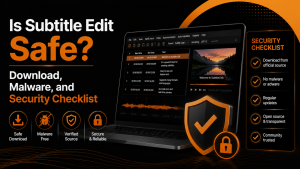
- Is Subtitle Edit Safe? Download, Malware, and Security Checklist
- Subtitle Edit Online: Best Web Options for Editing Subtitles
- Is Subtitle Edit Open Source? Features, License, and Download Options
- How to Use Whisper Speech Recognition in Subtitle Edit
- Subtitle Edit for Mac: Setup Options and Best Alternatives